
The CawCut browser extension collects images from websites that CawCut cannot import correctly from a pasted URL. You can review the captured images, save them to CawCut's Private Assets, or select images to use in Ad Video.

1. Install and Use the Save to CawCut Browser Extension
1.1 Install from the Chrome Web Store
For Chrome, Microsoft Edge, Opera, or other Chromium-based web browser, you can instal the Save to CawCut extension directly from the Chrome Web Store.
- Open Save to CawCut Chrome Web Store Page in your Chromium-based web browser.
- Click on Get to install the extension.
1.2 Manually Install the Extension
If you prefer to install the extension manually using the extension file:
- Download the extension ZIP file: Click to Download.
- Unzip the extension file and remember the folder's location.
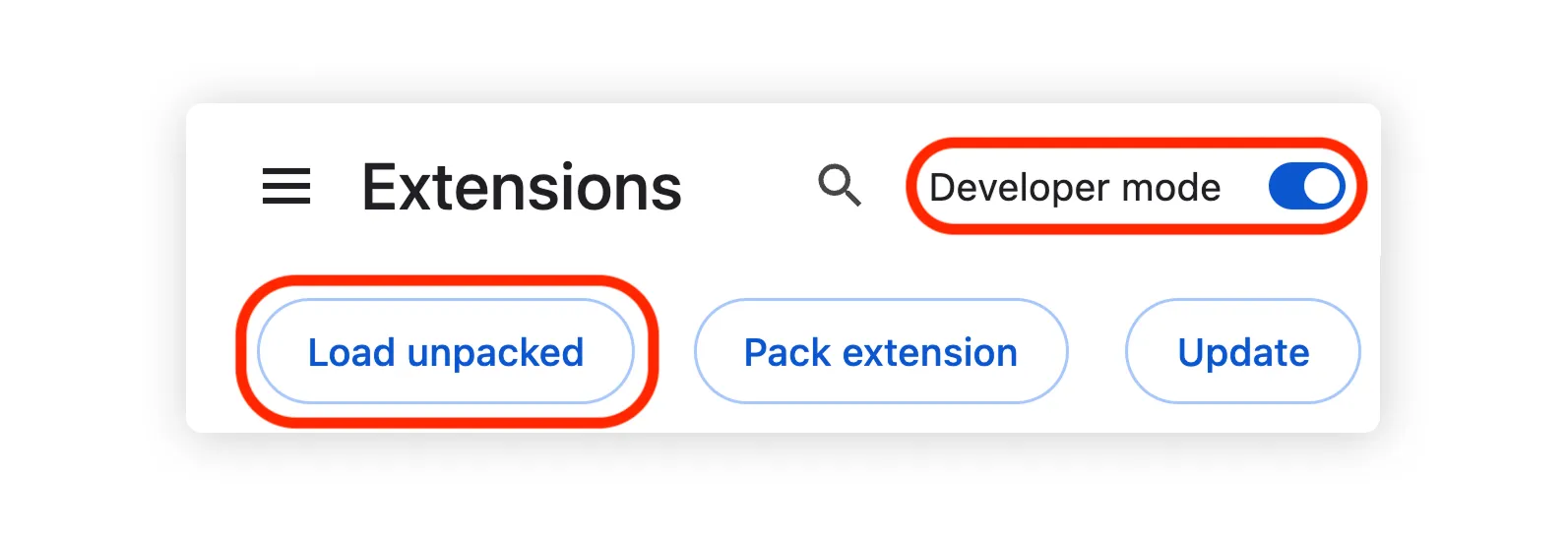
- Head to the Extensions page in your browser.
- Turn on Developer mode in the page (location vary based on the browser, Edge put this toggle in lower left corner).
- Click Load unpacked, and locate the folder where you put the unzipped file from the Save to CawCut extension zip file.
1.3 Sign In to CawCut
When you first open the extension, click [Sign in with CawCut] and CawCut login page will open. You can then sign in with your CawCut account to start using the extension.
2. Capture Images from a Website
2.1 Open the Extension window
Open a page with images you want to use, click the Save to CawCut extension icon in your browser's toolbar to open the extension window to review the collected images.
If the extension didn't collect all of the image you want, try click open the image in the product page so the image is fully loaded.
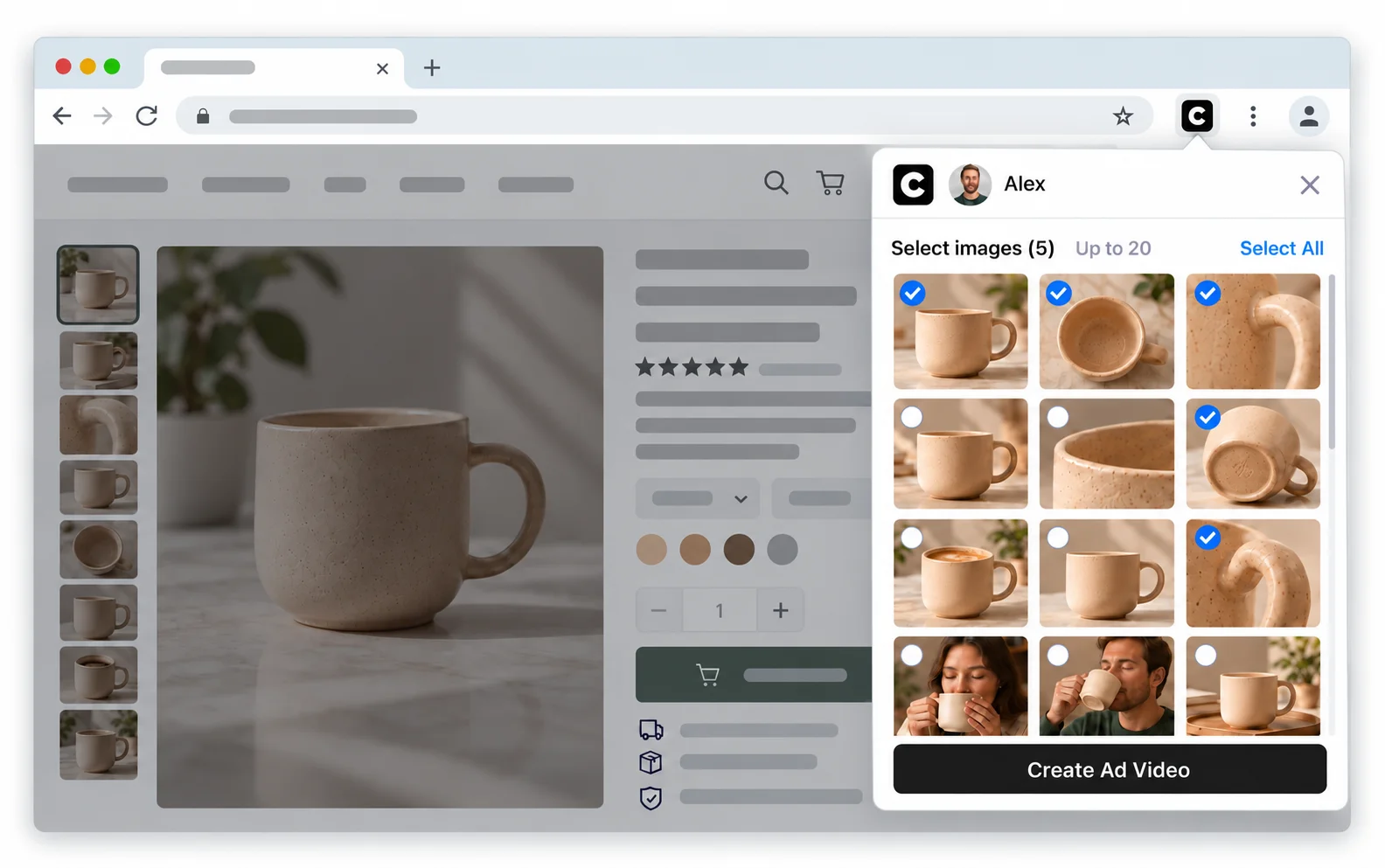
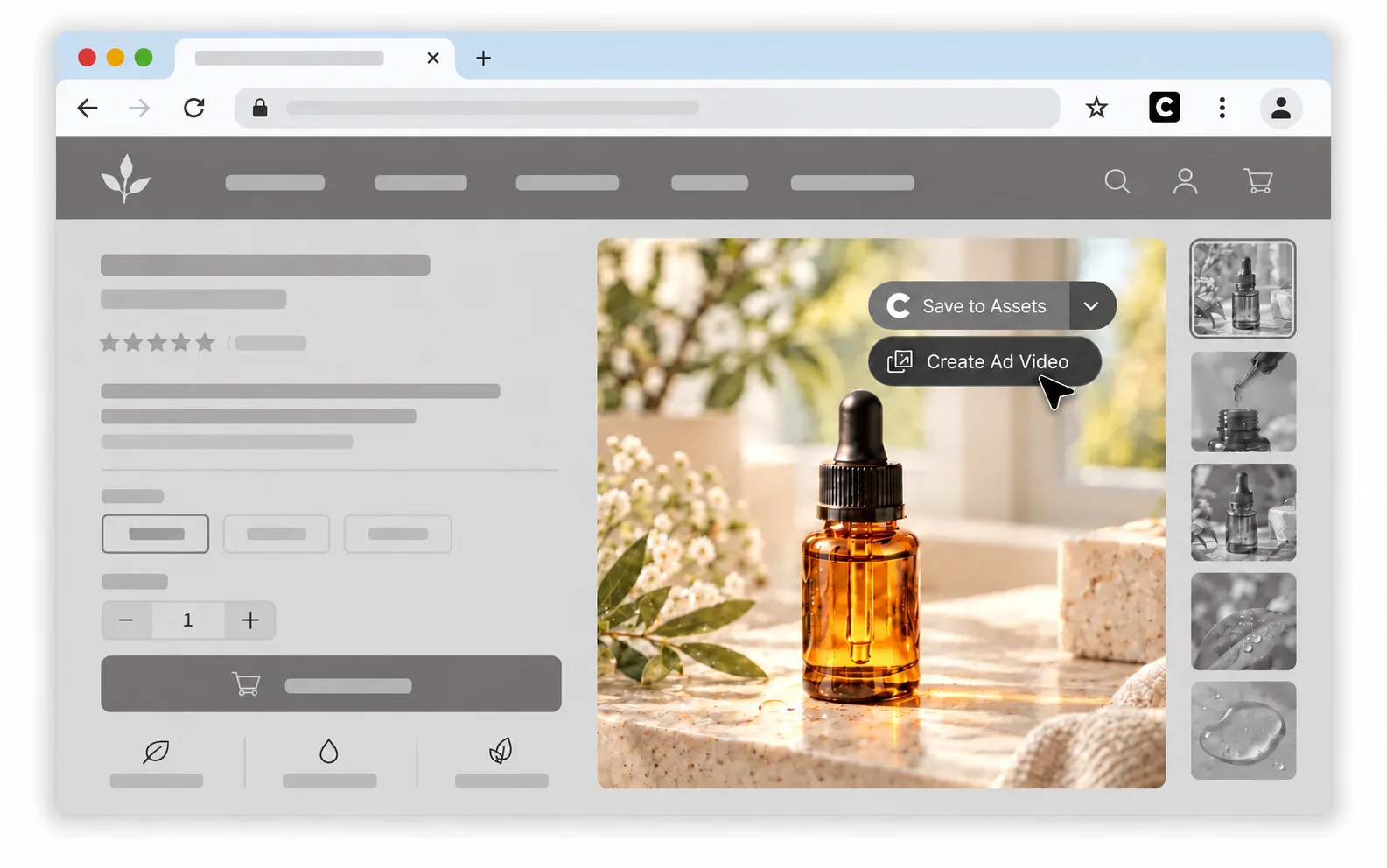
You can also hover your pointer over an image and click the arrow on the [Save to Assets] button to expand the dropdown menu, then clicking the [Create Ad Video] to open the extension window and review the images collected from the page. This action also helps you to collect the image in case the extension didn't automatically pick it up.
2.2 Save Images to Assets
When you hover over an image on the page, the [Save to Assets] action appears over the image. To save one image, hover over it and click [Save to Assets]. A “Saving to CawCut” notification appears in the top-right corner while the image is being saved. Once done, the [Saved to CawCut] and a [View] button will show up allowing you to view the saved assets in CawCut.
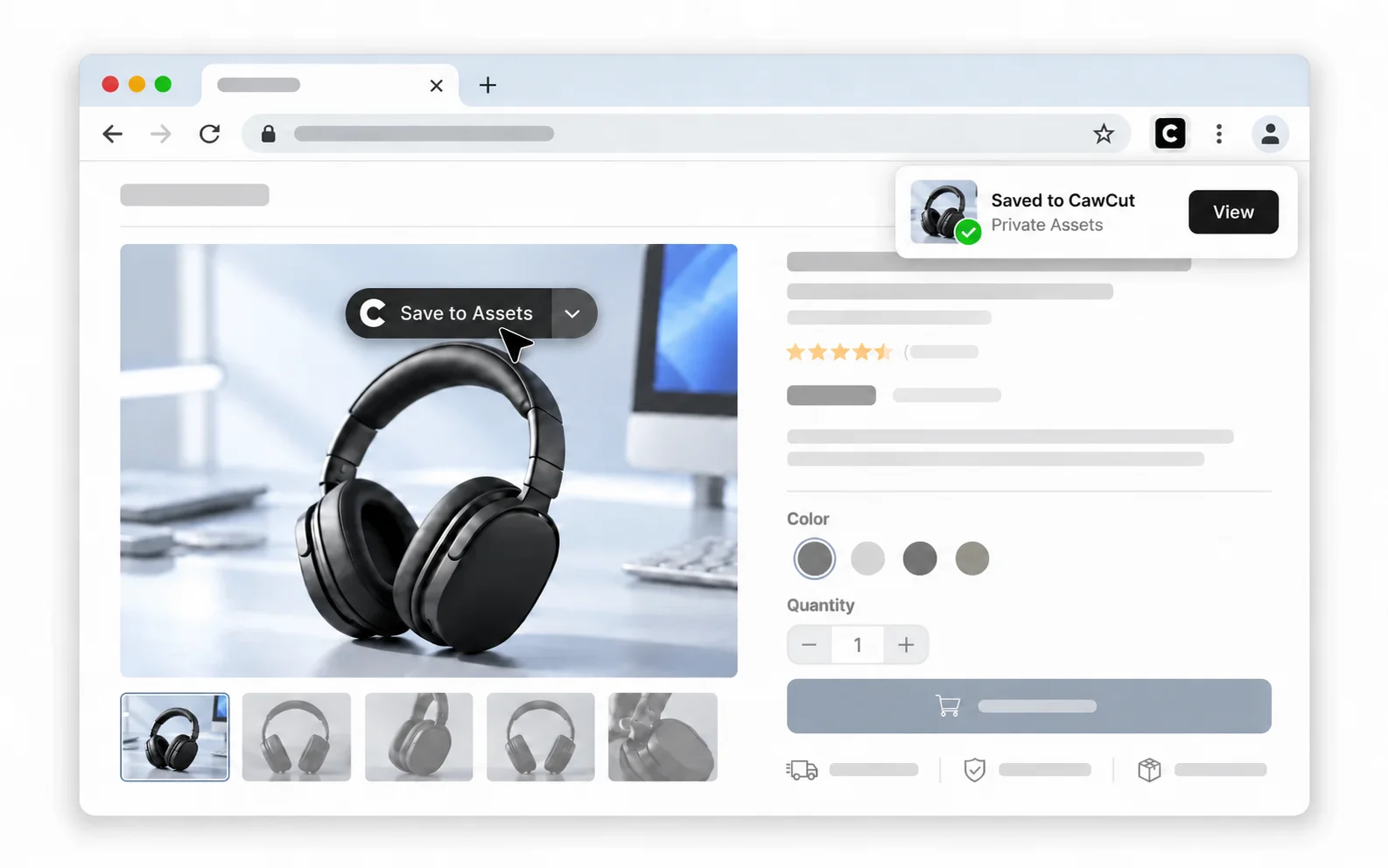
The extension saves images as private assets in CawCut, and you can use these assets in any project.