
Home
When you open app.cawcut.com, CawCut displays the [Projects] page by default. The home interface brings your projects, generated results, uploaded assets, and favorites together so you can quickly find existing work or start something new.
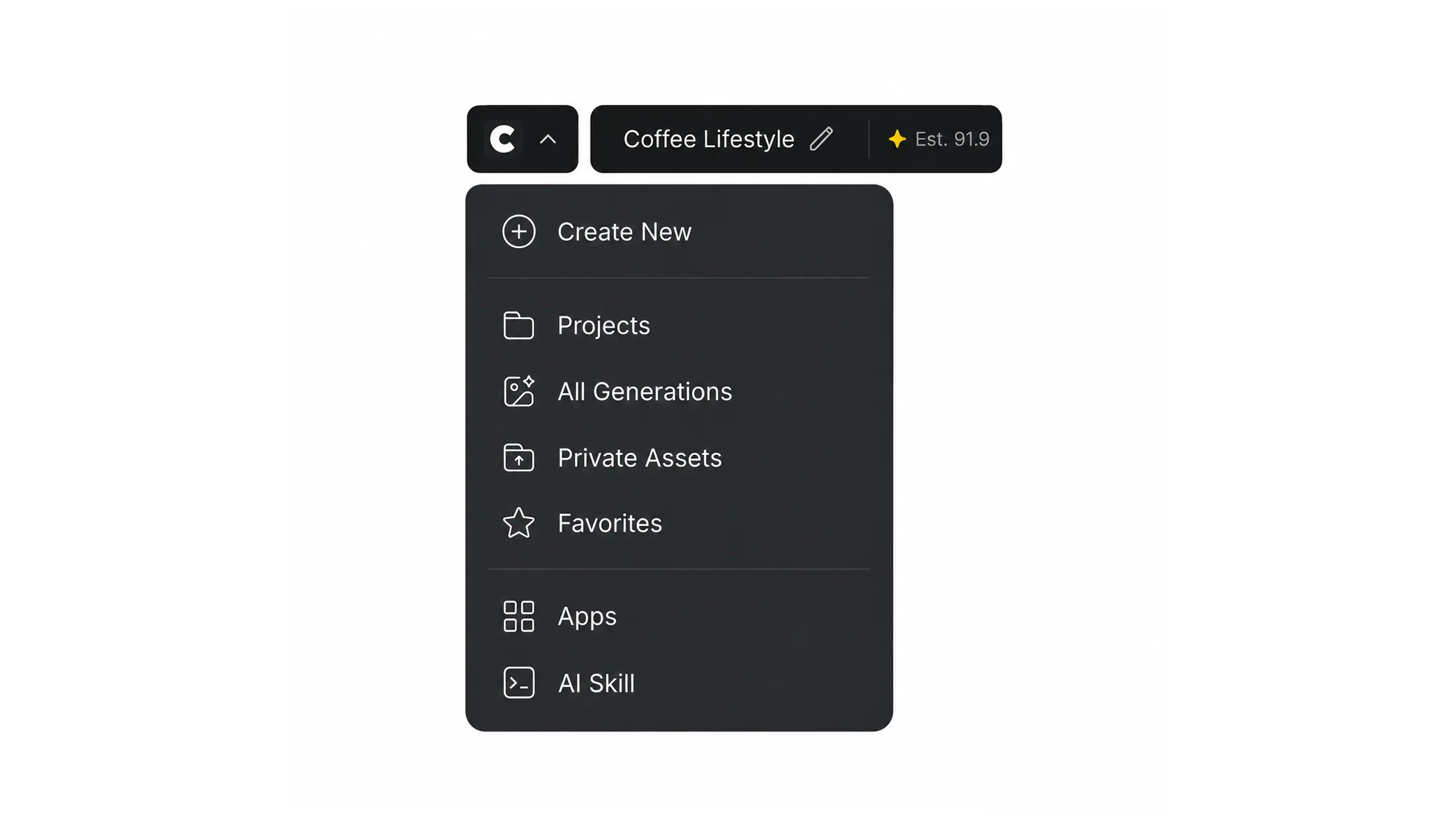
Use the left sidebar to move between the main areas of CawCut. Click [Create New] at the top to start a project or choose another available creation option.
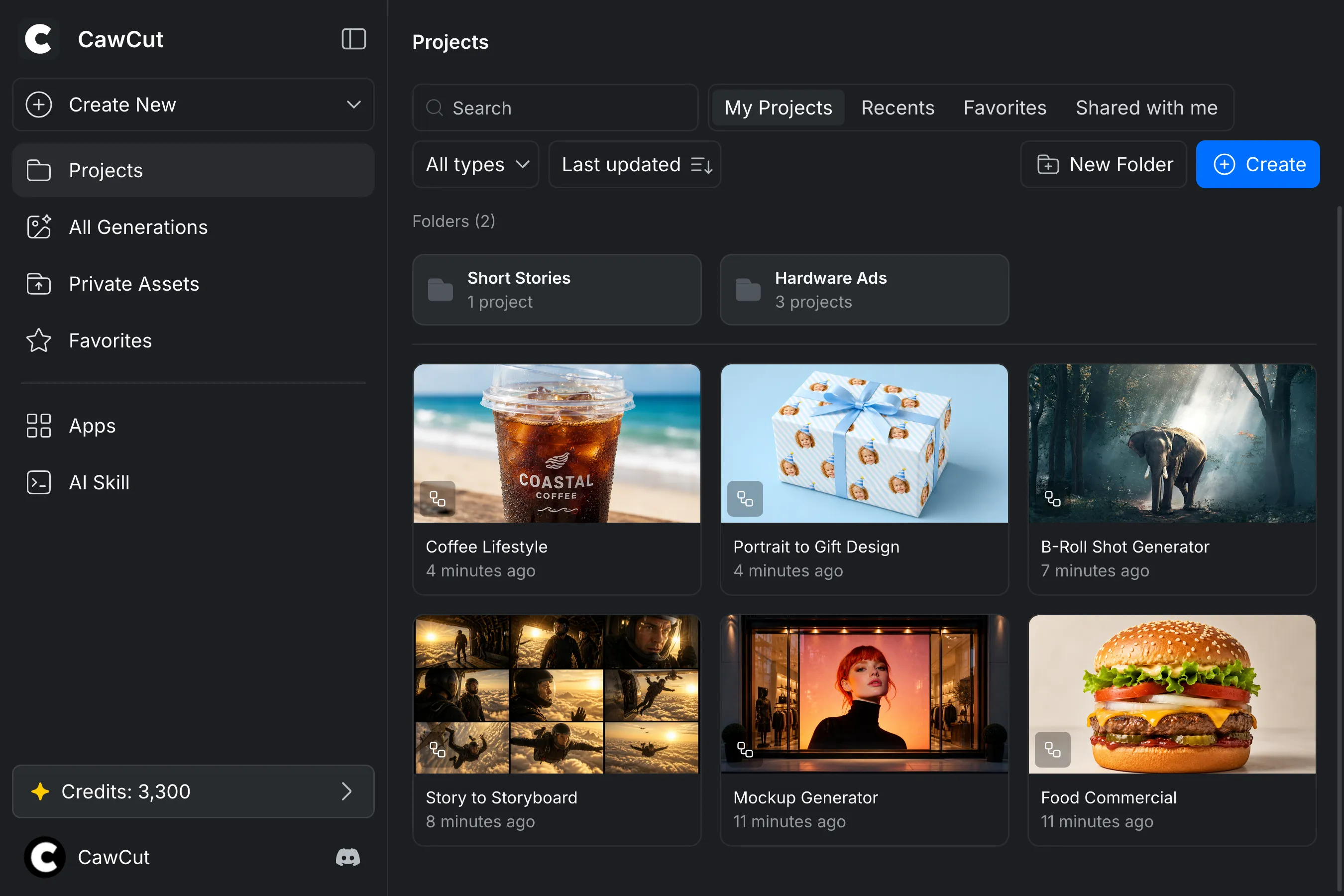
Home Navigation
| Sidebar item | What you can find |
|---|---|
| [Projects] | Your folders and projects. Switch between [My Projects], [Recents], [Favorites], and [Shared with Me], then search, filter, or sort the displayed items. |
| [All Generations] | Images and videos generated across your projects. Filter the results by media type or favorites. |
| [Private Assets] | Images, videos, and other files you uploaded to CawCut. Filter the assets by type, view favorites, or organize them into folders. |
| [Favorites] | Projects, generations, and private assets you marked as favorites. Use the tabs at the top to switch between each item type. |
| [Apps] | Apps you recently used, apps shared with you, and apps you created. Switch between [Recents], [Shared with Me], and [My Apps]. See CawCut Apps for more information. |
| [AI Skill] | CawCut Skills and related resources. See CawCut Skills for details. |
To favorite a project, generation, or private asset, hover over its card and click the star in the upper-right corner. Select the star again to remove the item from [Favorites].
Credits and Account
Your remaining credits appear near the bottom of the sidebar. Click the credit balance to open [Plan & Billing], where you can review usage, buy more credits, or compare subscription plans. For more information, see Credits.
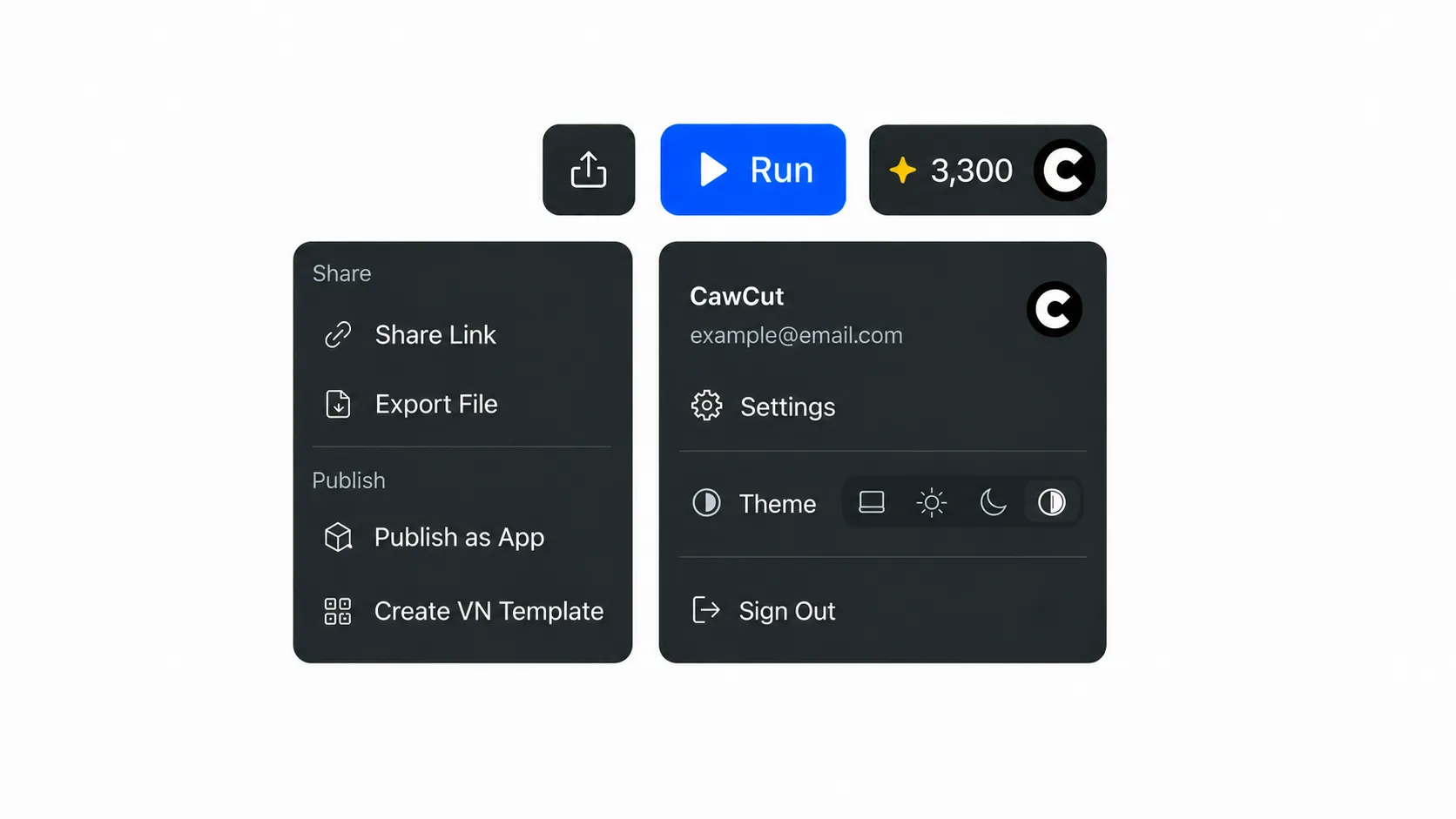
Click the CawCut account button in the bottom-left corner to change the interface theme, open [Settings], or sign out. In [Settings], you can manage your profile, password, and language, or open [Plan & Billing] from the Settings sidebar.
Canvas
The canvas is where you build, connect, and run the nodes in a CawCut workflow. The controls around the canvas help you add nodes, move through the workspace, manage the workflow, and access sharing and publishing options.
Start a Workflow
When you create a workflow, CawCut opens the [New Workflow] window by default. Select an available template to begin with a prepared workflow, or select [New Blank File] to build one yourself. For step-by-step instructions, see Start with a Template or Create a Workflow.
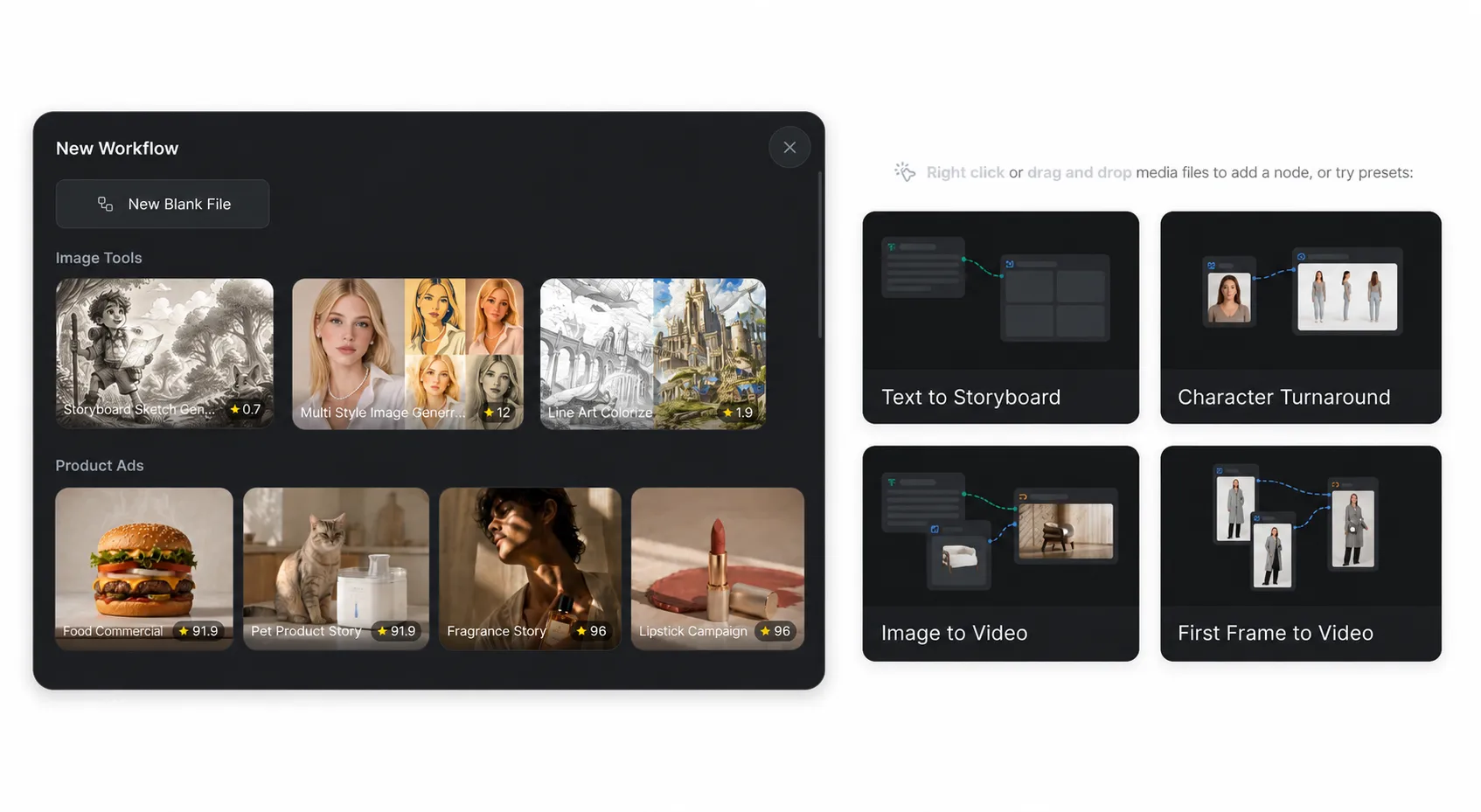
A blank workflow opens with a brief navigation prompt and four quick-start options: [Text to Storyboard], [Character Turnaround], [Image to Video], and [First Frame to Video]. Select an option to add its starter nodes, or drag and drop a media file onto the canvas. You can also right-click any empty space on the canvas to open the [Add Node] menu.
Canvas Controls
- Upper left: Return to your projects or another home area, rename the workflow, and view its estimated credit cost.
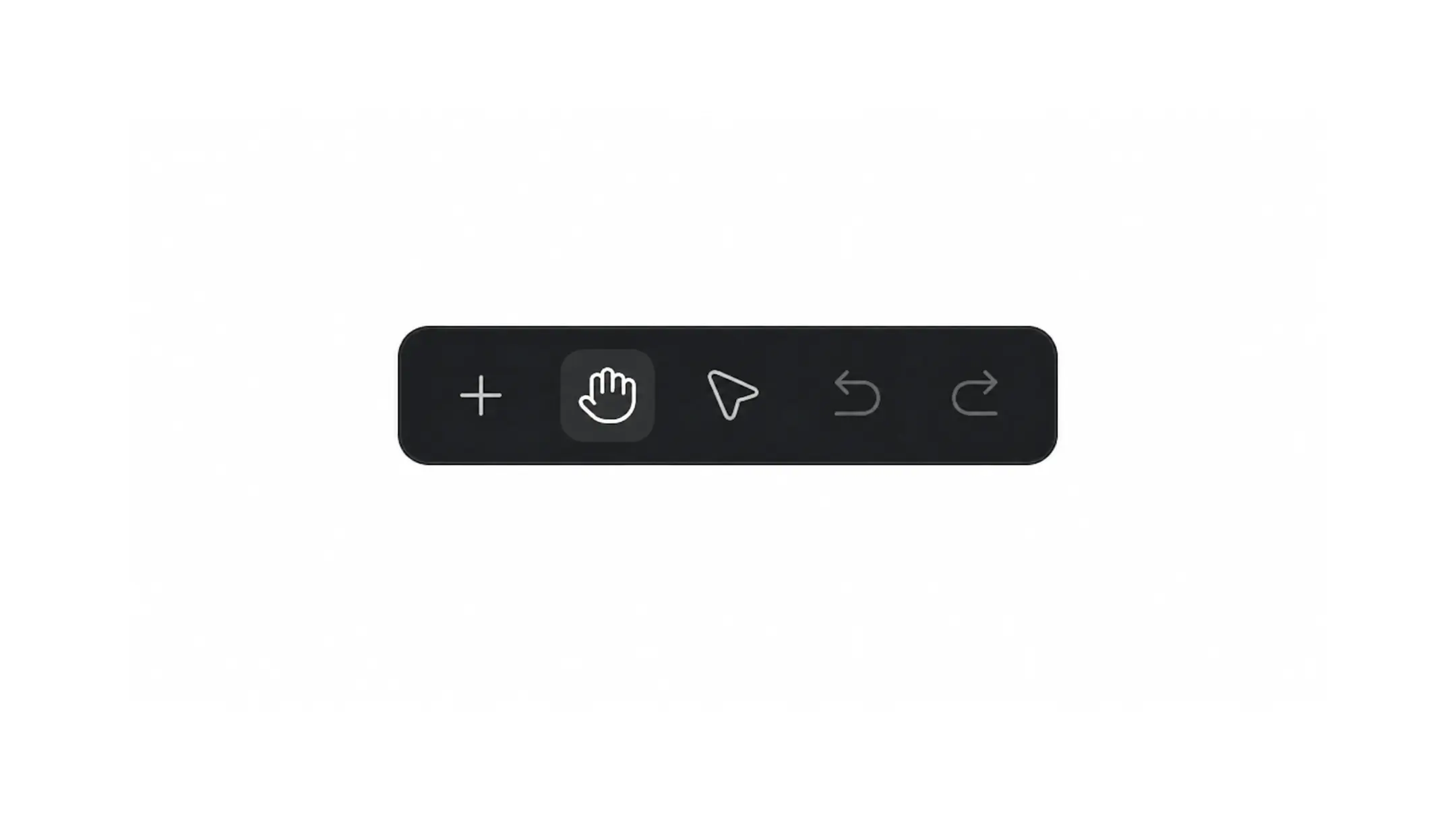
- Top center: Add nodes, switch between pan and selection tools, and undo or redo changes.
- Upper right: Share or export the workflow, publish it as an App, create a VN template, run the workflow, and open credit or account options.
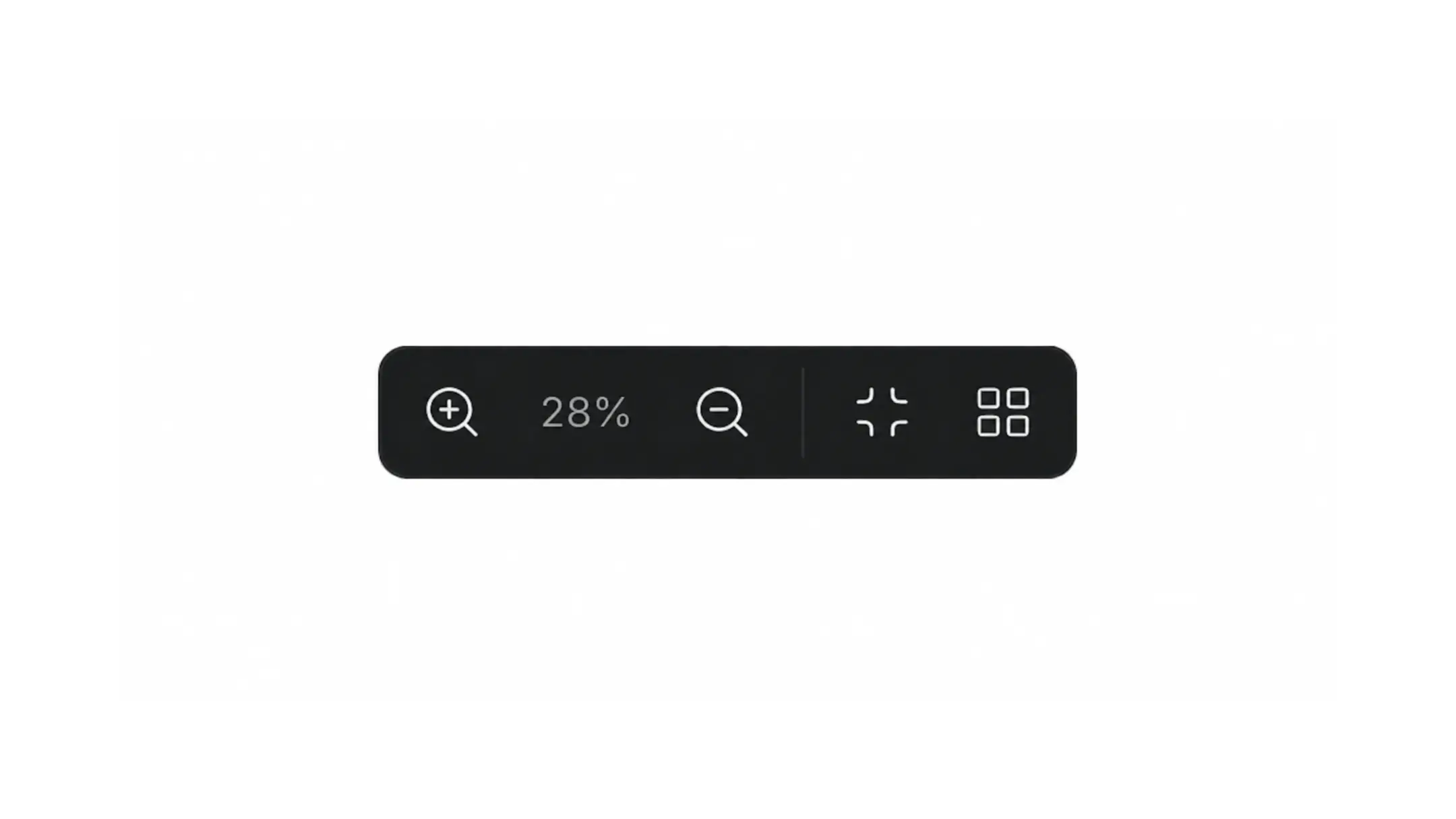
- Bottom left: Adjust the zoom level, fit the workflow to the current view, or automatically clean up the node layout.
For detailed guidance on configuring and connecting nodes, see Create a Workflow and the Nodes guides. For the complete list of navigation and editing commands, see Keyboard Shortcuts.