
Use the Layer, Stitch Video, and Extract Frame nodes to arrange video and audio, combine clips, and extract still images for editing.
1. Layer Node
The Layer node lets you combine audio and video, and add a video overlay. Use it to arrange these elements together before continuing your edit in VN.
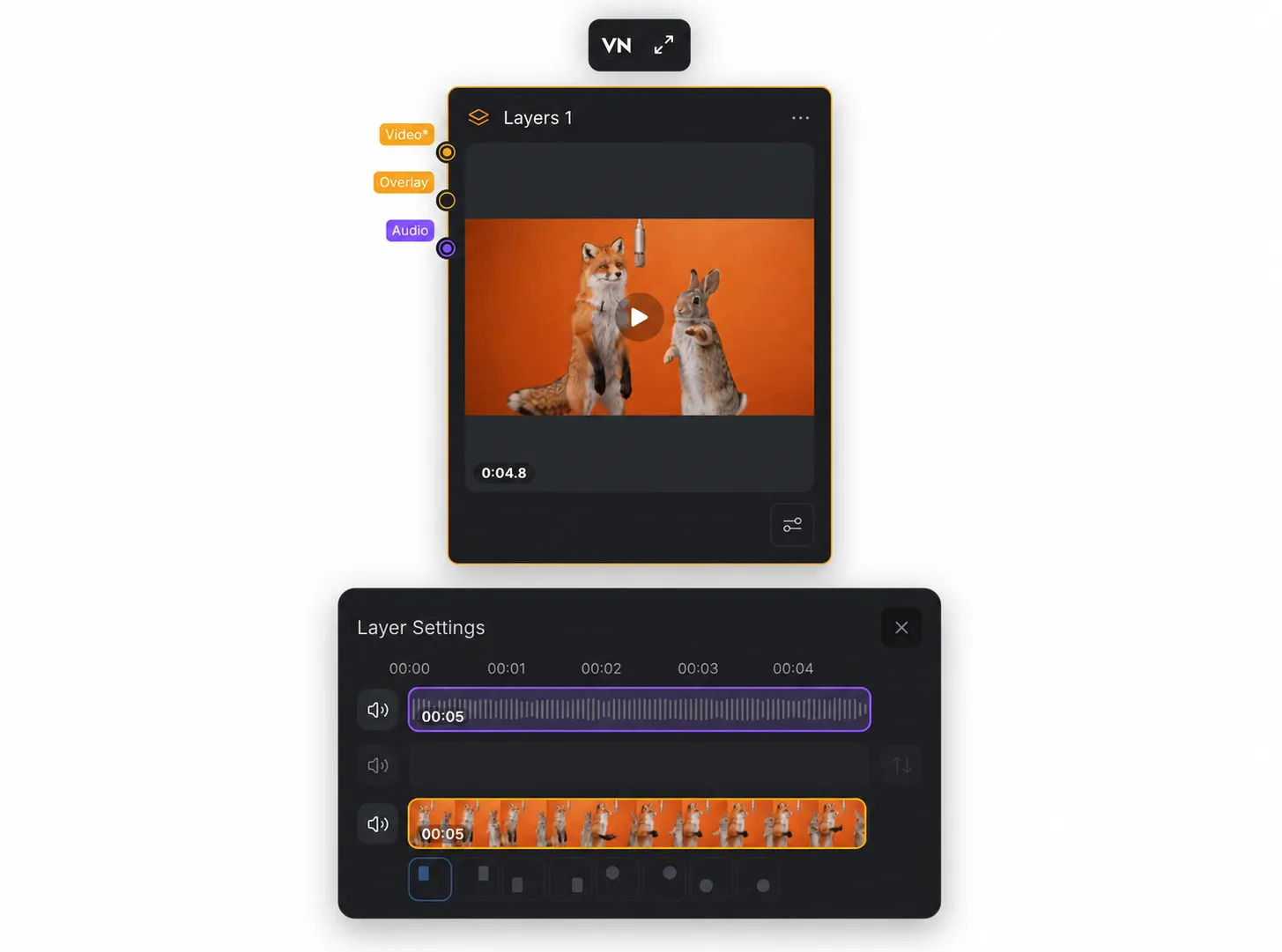
1.1 Arrange Video, Overlay, and Audio
Connect video, overlay, and audio to the Layer node to combine them in one composition. The node's layer settings let you work with the connected tracks.
1.2 Add and Position Overlay Video
To add an overlay, connect a video to the Layer node's overlay input. Choose where the overlay appears by selecting one of the position buttons below the main track.
1.3 Continue Editing in VN
For more control, click the [VN] button above the Layer node to continue editing with its video and audio in VN.
- Edit in VN Desktop: Download and install VN Desktop on Windows or macOS, then continue editing with the Layer node's video and audio in the VN app.
- Edit in VN Mobile: A QR code appears. Open the VN app, use its QR code scanning function to scan the code, and continue editing with the Layer node's video and audio in the app.
2. Stitch Video Node
The Stitch Video node combines multiple video clips into one sequence. You can continue editing the stitched project in the VN mobile or desktop app.
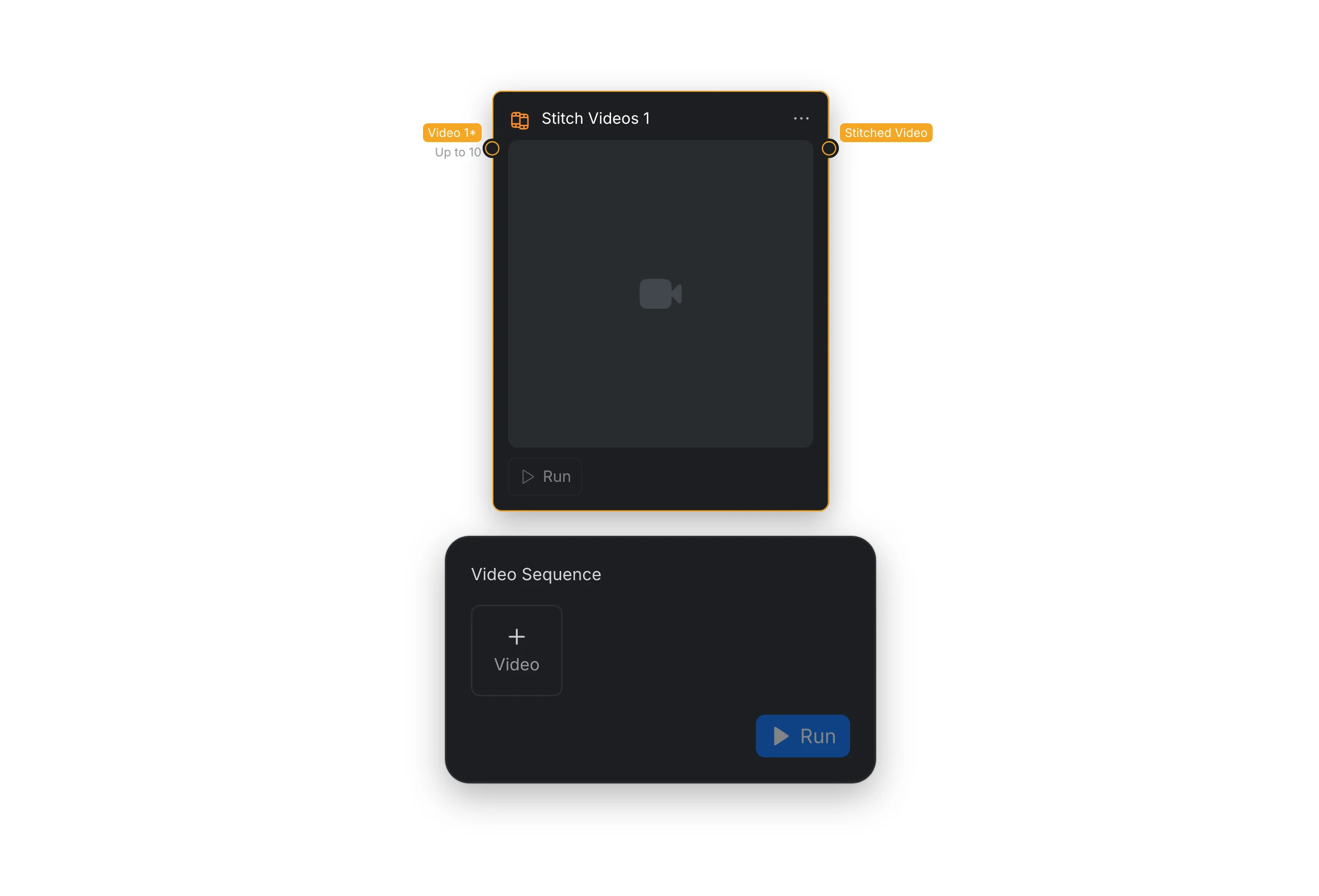
2.1 Inputs and Output
| Port | Required | What it does |
|---|---|---|
| Video | Yes, up to 10 clips | Receives the video clips to combine into a sequence. |
| Stitched Video | — | Outputs the combined video sequence for use in the workflow or further editing in VN. |
2.2 Continue Editing in VN
- Edit in VN Desktop: Install the latest VN Desktop app on your computer, open the project in VN, and continue editing on Windows or macOS.
- Edit in VN Mobile: Scan the QR code with the VN app, wait for the project to download, then continue editing on your mobile device.
For help getting started with VN, see Getting started. To learn about VN's editing features, see Creative editing tools.
3. Extract Frame Node
The Extract Frame node converts the first or last frame of a connected video into a still image. This is useful when a later node needs an image reference, especially when creating a transition between two clips.
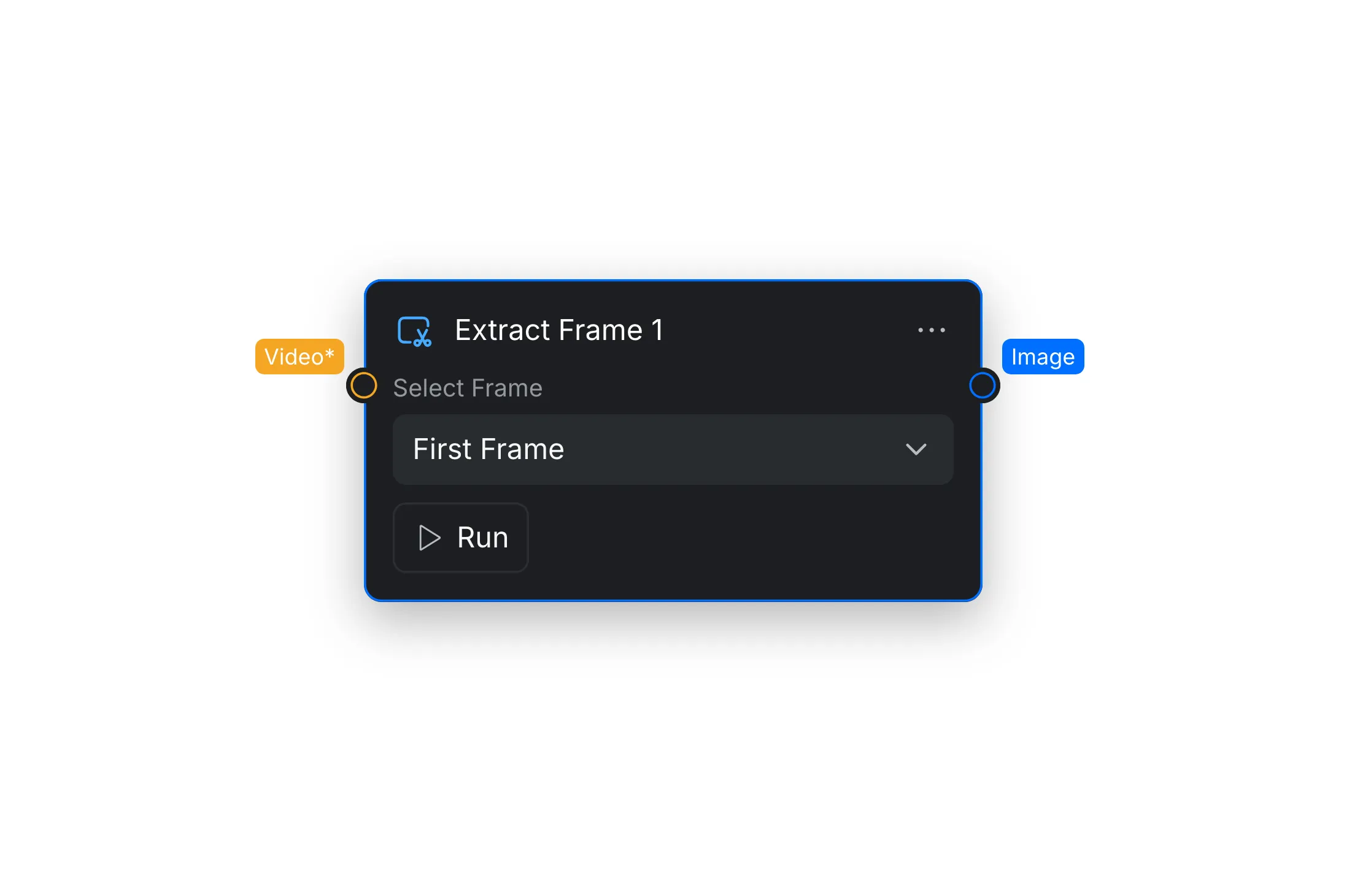
3.1 Select a Frame
Open [Select Frame] in the Node Settings and choose one of the following options:
| Option | Result |
|---|---|
| [First Frame] | Outputs the opening frame of the connected video. |
| [Last Frame] | Outputs the closing frame of the connected video. |
3.2 Input and Output
| Port | Required | What it does |
|---|---|---|
| Video | Yes | Receives the source video. |
| Image | — | Outputs the selected frame as a still image. |