
1. Prepare Your Workflow
Before publishing, run the workflow and confirm that it produces the intended results. Identify:
- The text or media values users should replace.
- The final image or video outputs users should receive.
- Any input guidance users need to provide suitable content.
2. Publish as an App
The publishing flow guides you through [Inputs], [Outputs], [App Info], and [Complete].
2.1 Open Publish as App
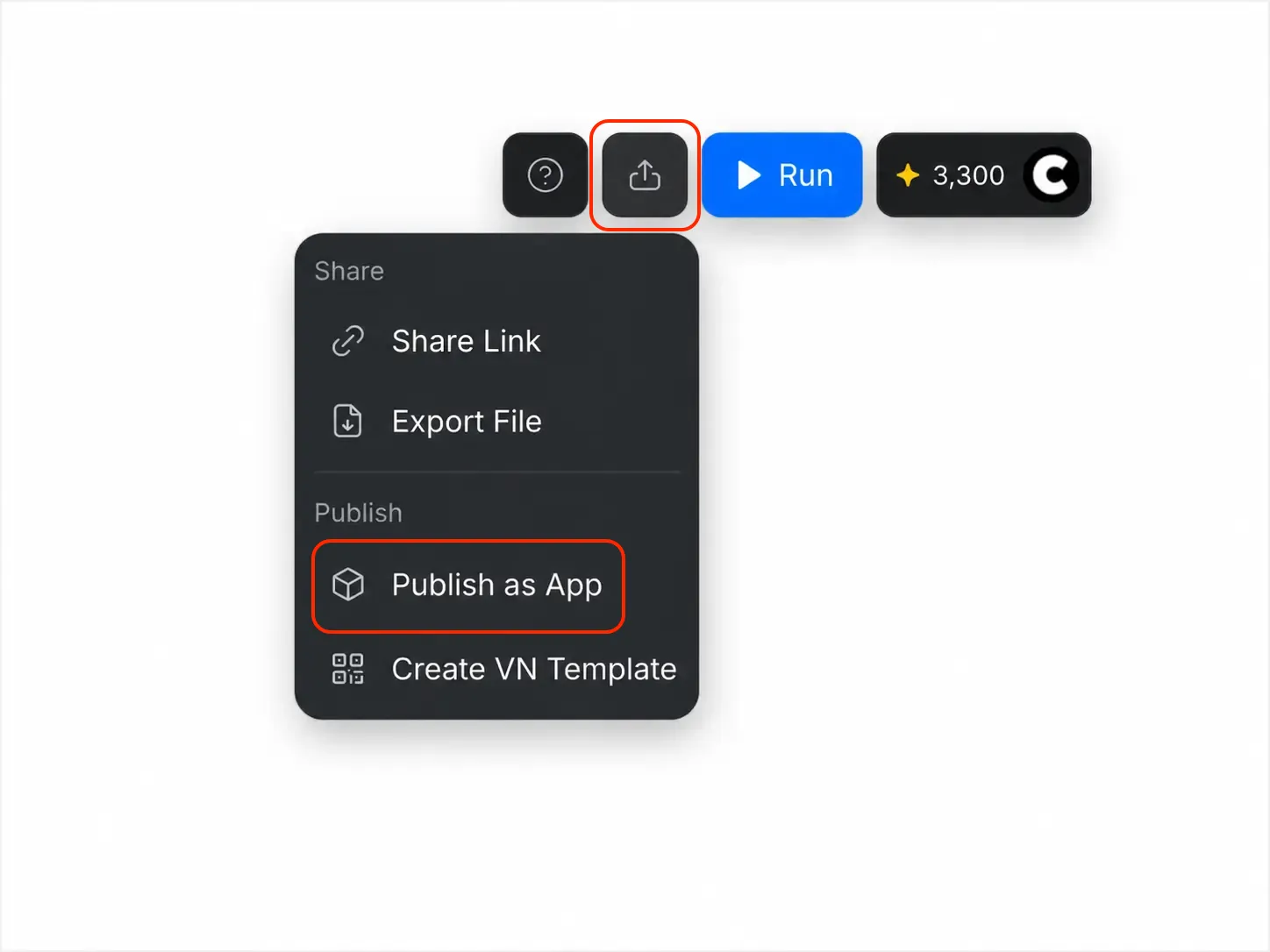
- Open the workflow you want to publish.
- Click [Share] in the upper-right corner.
- Select [Publish as App].
2.2 Select User Inputs
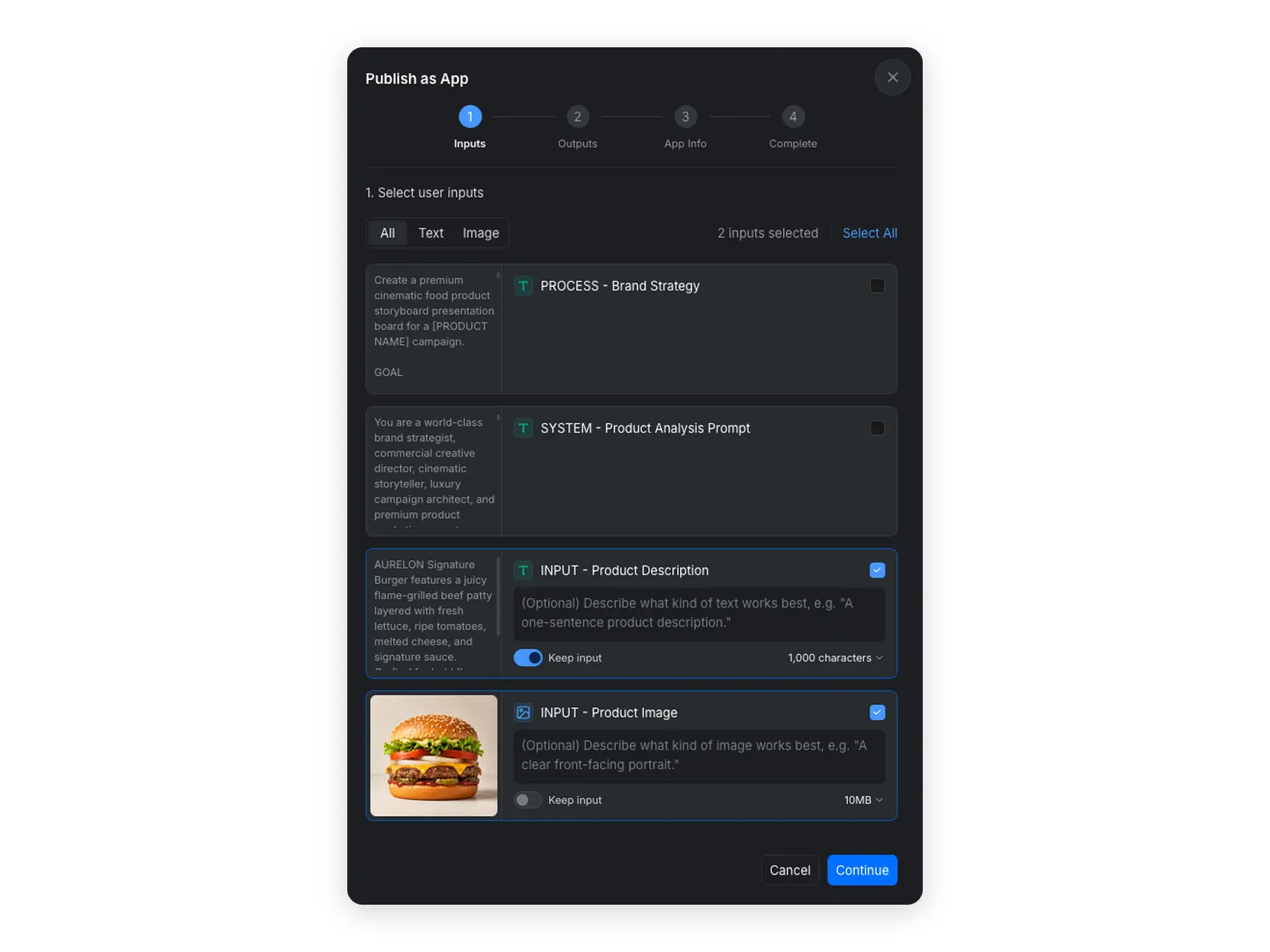
- Select the input nodes that users need to complete when running the App. Use [All], [Text], or [Image] to filter the available nodes.
- Add a short description to each selected input so users know what type of content works best.
- Set the applicable character or file-size limit.
- Enable [Keep input] when the node's current value should remain available in the published App.
- Click [Continue].
2.3 Select App Outputs
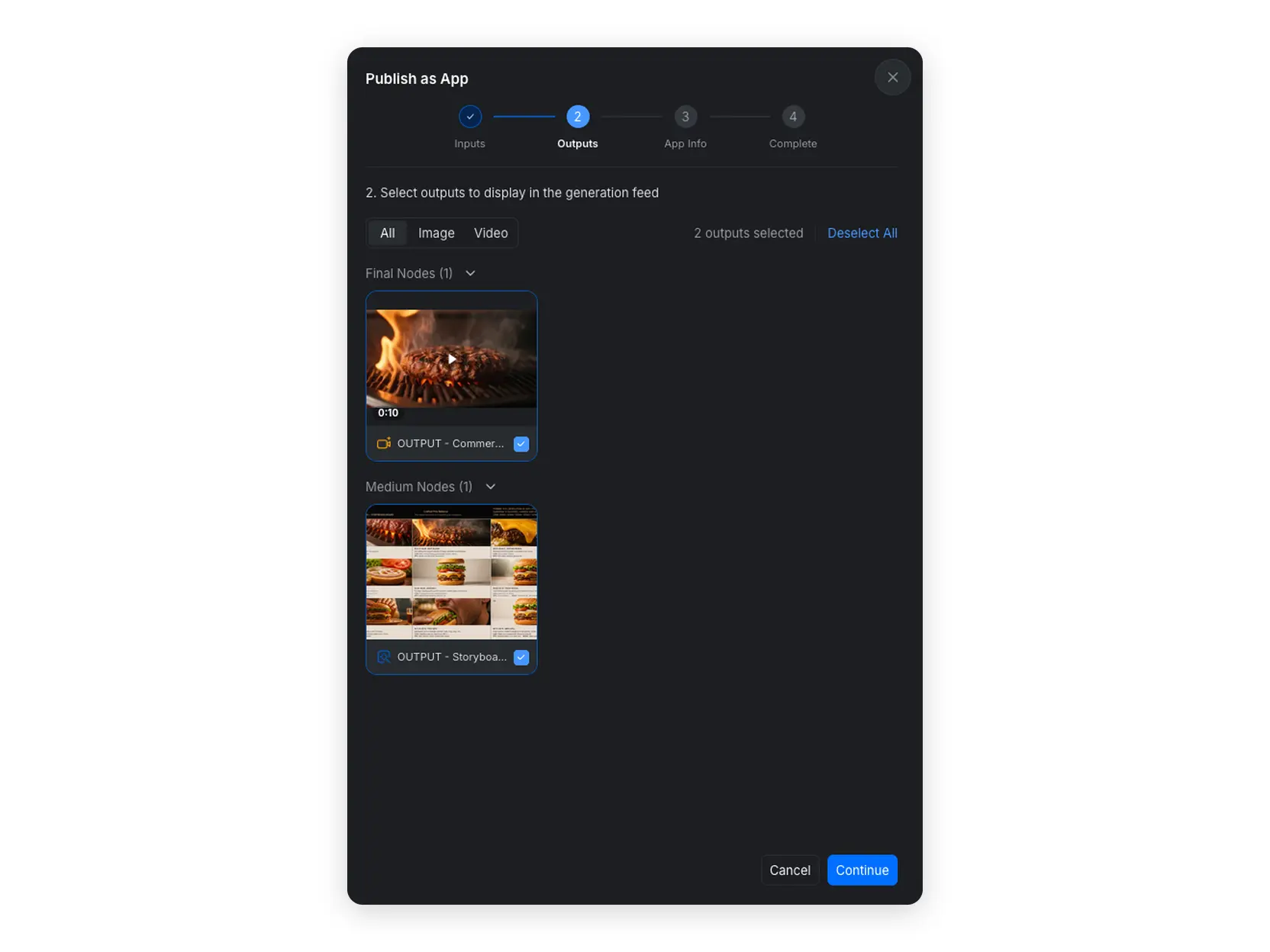
- Select the final output nodes whose generated results should appear in the [Generation] feed.
- Use [All], [Image], or [Video] to filter the available outputs.
- Click [Continue].
2.4 Add App Information
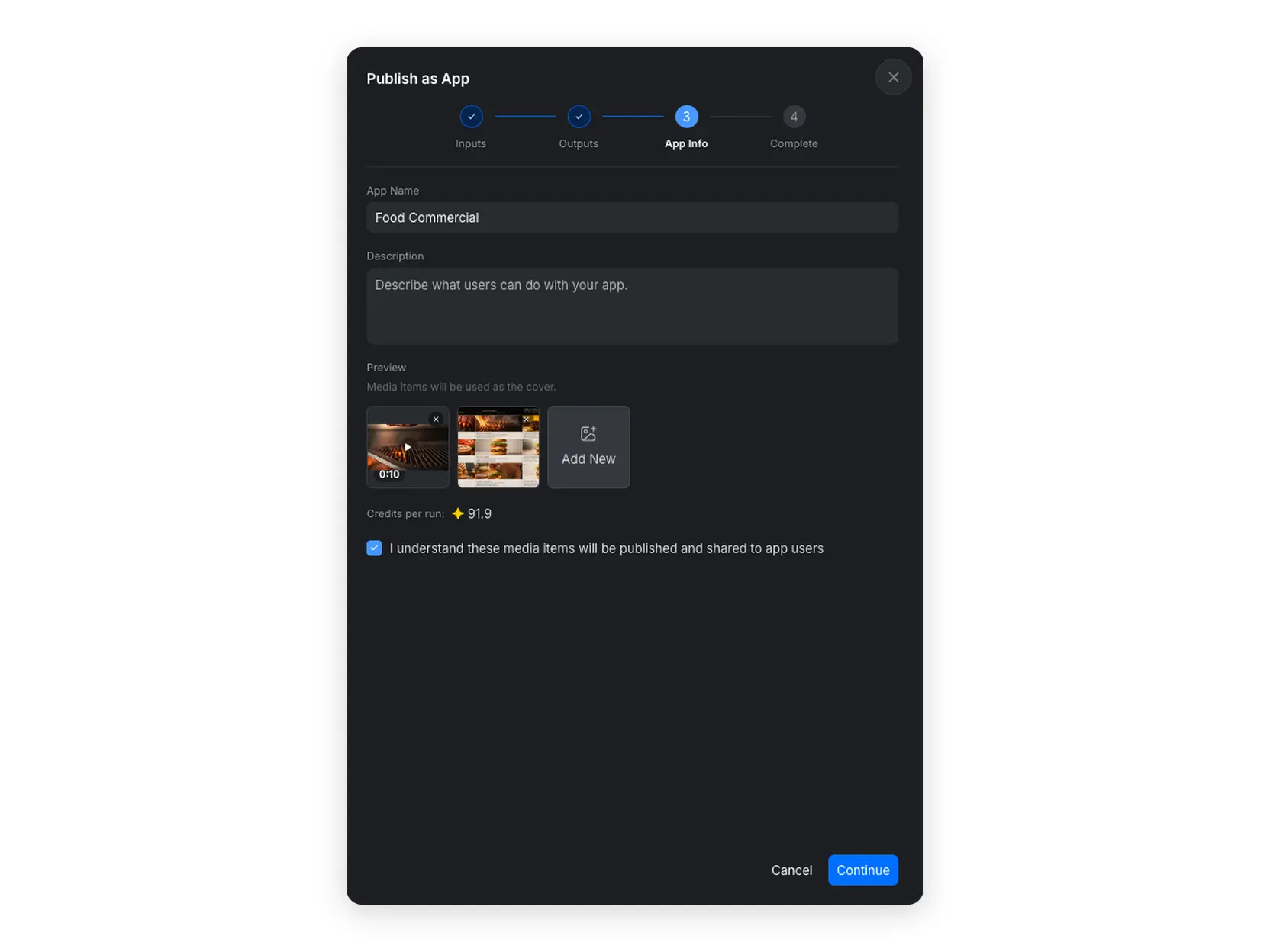
- Enter an [App Name] and a concise [Description].
- Select the media items that will be used as the App preview.
- Review the estimated [Credits per use].
- Confirm that you understand the selected media items will be published and shared with App users.
- Click [Continue].
2.5 Complete Publishing
When publishing is complete, click [View App] to check the App interface. Test the published App with new inputs before sharing it with other users.
3. Choose Who Can Access the App
Choose the access setting that matches how you want to share the App.
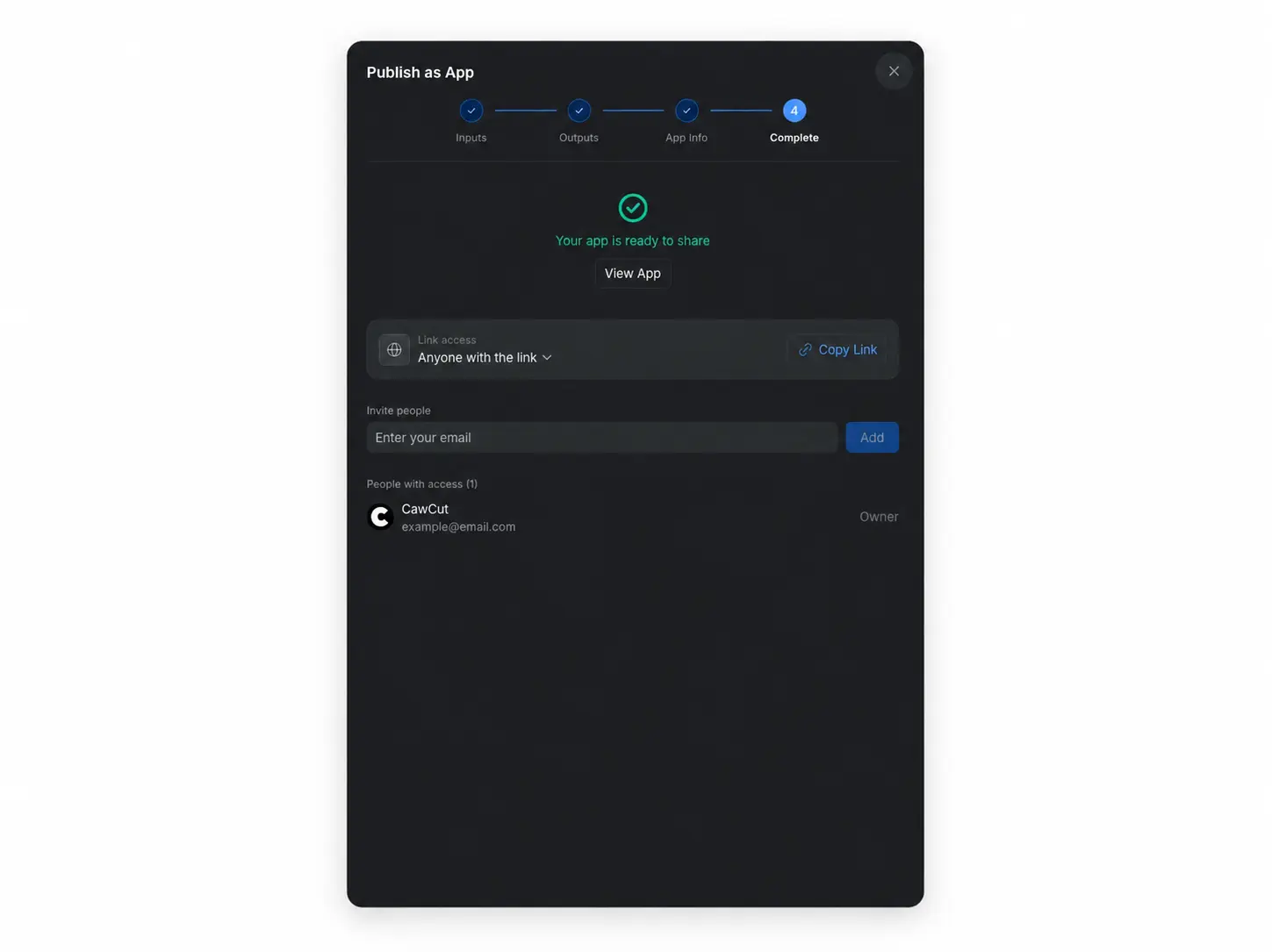
- Anyone with the link: Select this option, click [Copy Link], and send the access link. Anyone who receives the link can open the App.
- Only invited people can access: Select this option, enter each user's email address, and click [Add]. Copying the link does not grant access to users who have not been invited.
You can return to [My Apps], open the App, and update its sharing settings later.
After publishing and sharing the App, see Use an App to learn how to provide inputs, generate results, and manage previous generations.