
Overview
CawCut Apps are reusable AI-powered templates created by creators and the community.
Instead of building workflows from scratch, Apps let you quickly generate content by simply uploading your own assets and running a pre-built workflow.
You can think of Apps as:
- Ready-to-use AI templates built by creators.
Whether you want to create stylized portraits, product visuals, design assets, or creative content, Apps help you achieve results faster with minimal setup.
Create and Share Apps
Anyone can create and share Apps in CawCut. Creators can build reusable workflows and publish them for others to use.
How to Create an App
Transforming your workflow into an App is a straightforward process:
1. Initiate Publishing: Inside your active workflow editor, click on the Export menu in the top right corner and select Publish as App.
2. Define Inputs: Select the specific input nodes—such as Text, Image, or Video—that users will need to configure when running your App, then click Continue.
3. Define Outputs: Choose which output nodes (e.g., Image, or Video) will be displayed as the generated results in the feed. Click Continue.
4. App Info: Enter an App Name and a brief Description. Select the media items that will serve as the preview cover for your App. Check the box to confirm you understand these media items will be published and shared, then click Continue.
5. Complete: Your app is now live! From here, you can choose to View in Apps or Share App immediately.
How to Share an App
Once your app is published, you can securely share it and manage visibility permissions. There are two ways to access the sharing settings:
- Immediately After Publishing: Click the Share App button on the final success screen.
- From the Apps Dashboard: Click Apps from the left sidebar, select the My Apps tab, open your published App, and click the Export icon (upload arrow) in the top right corner.
Inside the Share App dialog, you can configure:
- Link Access: Adjust who can view your App. You can choose Anyone with the link or restrict it to Only invited people can access.
- Invite People: Enter the email addresses of specific users you want to grant access to and click Add.
Browse Apps
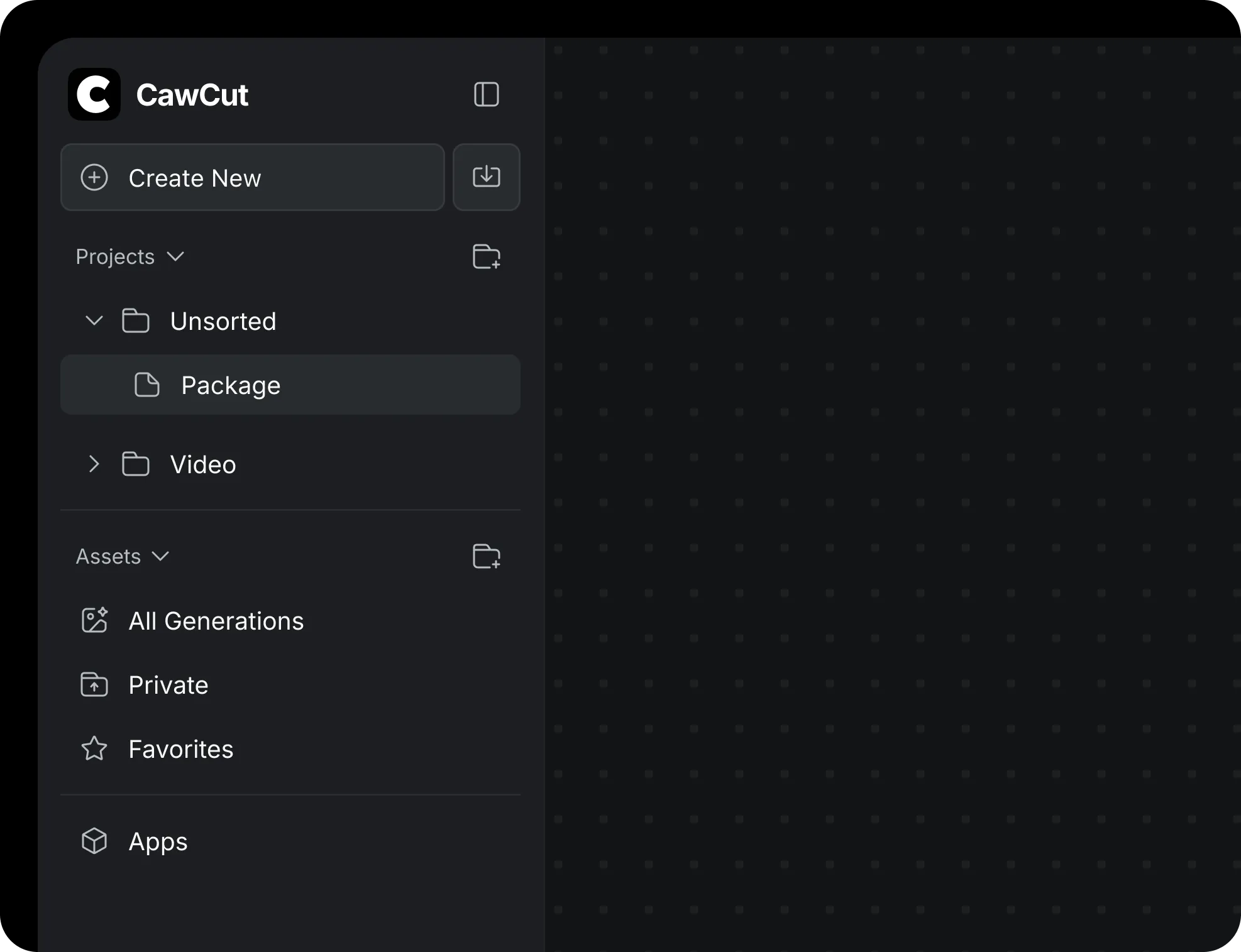
To open Apps, click Apps from the left sidebar.
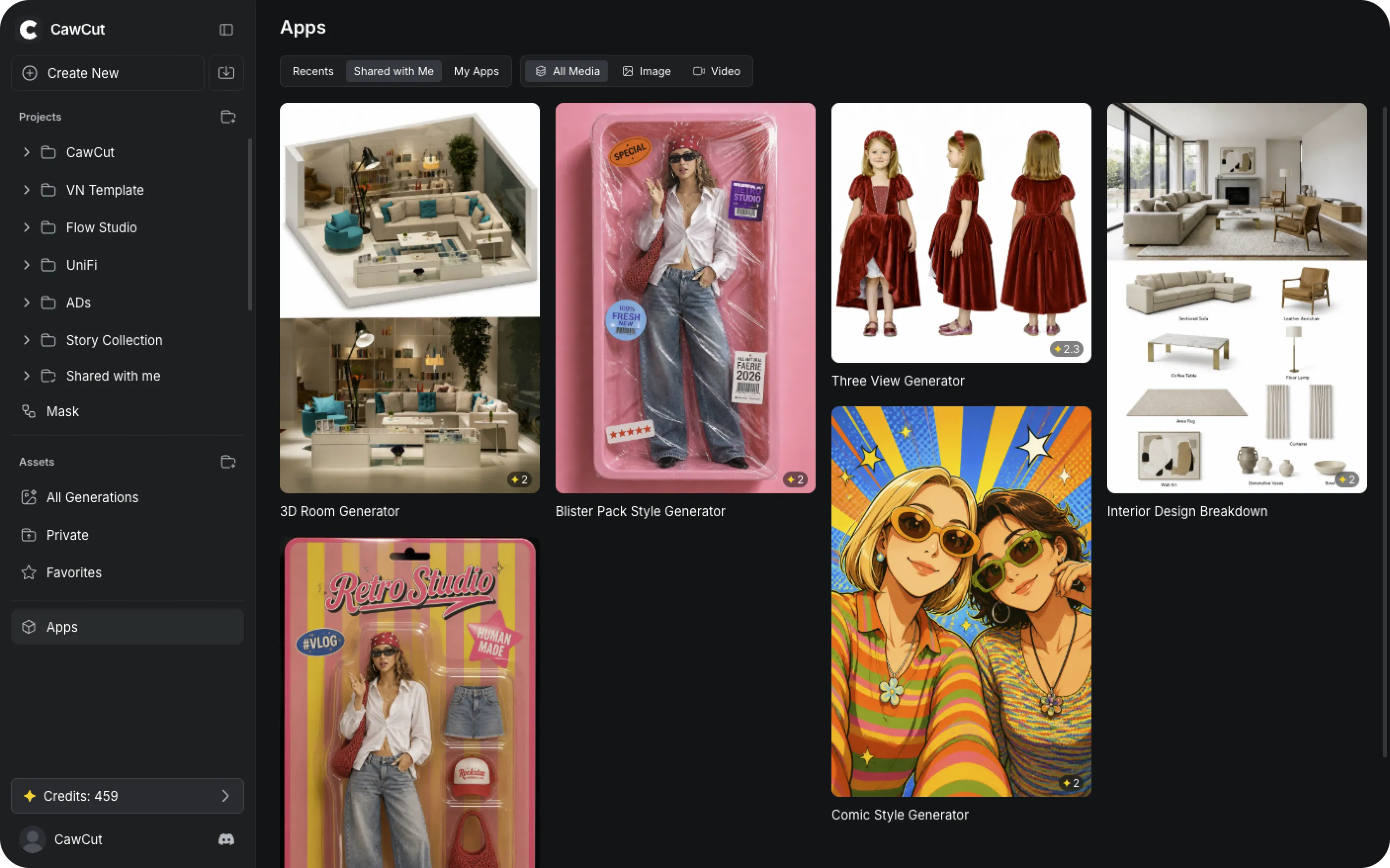
Inside the Apps page, you can browse different community-created templates and reusable workflows.
You can explore Apps through the following sections:
| Section | Description |
|---|---|
| Recent | View recently used Apps. |
| Shared with Me | Access Apps shared by other users. |
| My Apps | Manage Apps you have created. |
| All Media | View all available App templates across all media types. |
| Image | Filter and view Apps that generate images as final outputs. |
| Video | Filter and view Apps that generate videos as final outputs. |
Each App card may include:
- A preview image
- App name
- Example result
- Estimated credit cost
This helps you quickly understand what the App does before using it.
Use an App
Step 1: Open an App
To get started, click Apps from the left sidebar menu. Browse the available templates and click on an App card to open its workspace.
Step 2: Provide Your Inputs
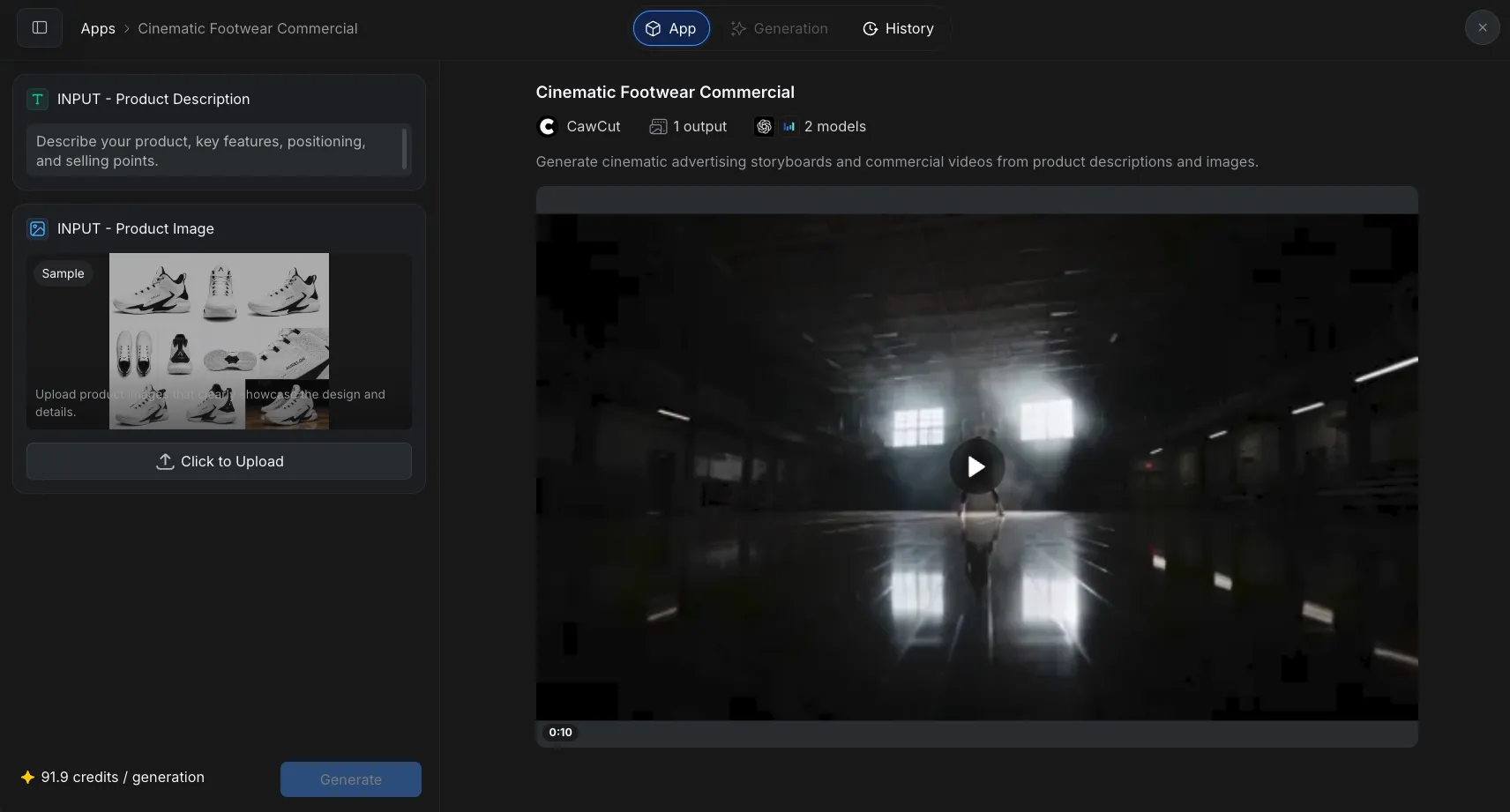
In the left panel, fill out the required information based on the App's configuration. This may include:
- Typing text into specific fields (e.g., Product Description).
- Uploading media like photos, videos, or audio files.
Step 3: Generate Content
Once your inputs are ready, click the Generate button. The estimated credit cost for the run is displayed right next to the button.
CawCut will automatically run the workflow behind the App. You do not need to manually connect nodes or configure settings; the App handles the process automatically.
Step 4: Get Your Results
Once the generation is complete, your final outputs will appear on the Generation page. From here, you can:
- View results: Instantly review your newly generated media assets within the main viewer.
- Download generated content: Save your final assets directly to your local device.
Apps are designed to simplify complex workflows into a faster, beginner-friendly experience.