
Text nodes let you add text to a workflow, generate or rewrite content with an AI model, combine or split text, and extract specific values from JSON data. Use them to prepare prompts and structured information for downstream nodes.
1. Text Node
The Text node is a simple text box for entering static content. Use it for instructions, source material, system prompts, user prompts, or any text that should remain unchanged when the workflow runs.
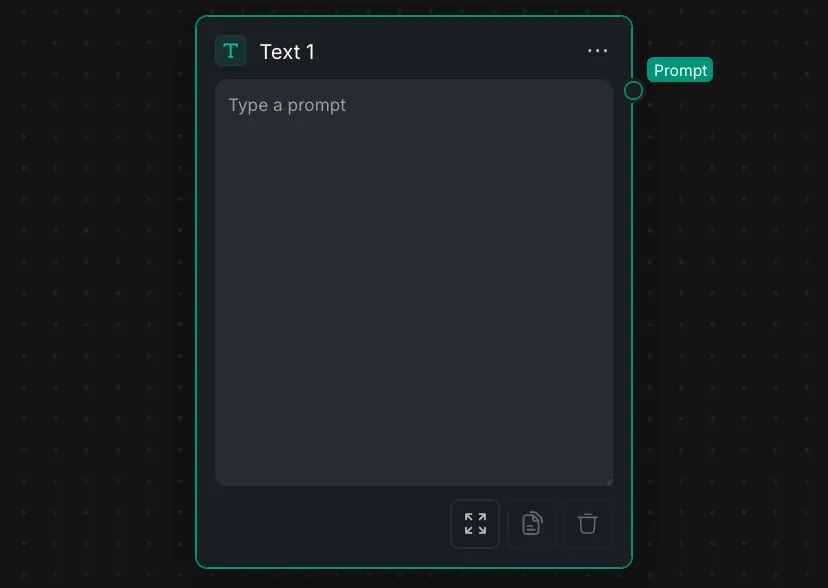
- Output: The text is passed downstream through the Prompt output port.
- Node Panel: Use the controls at the bottom to expand the editor, copy the text, or clear its contents.
2. Text Generation
Use the following nodes when you want an AI model to generate new text or transform existing text.
2.1 LLM Node
The LLM Node uses a large language model to generate regular text or structured JSON from your prompts and optional reference images.
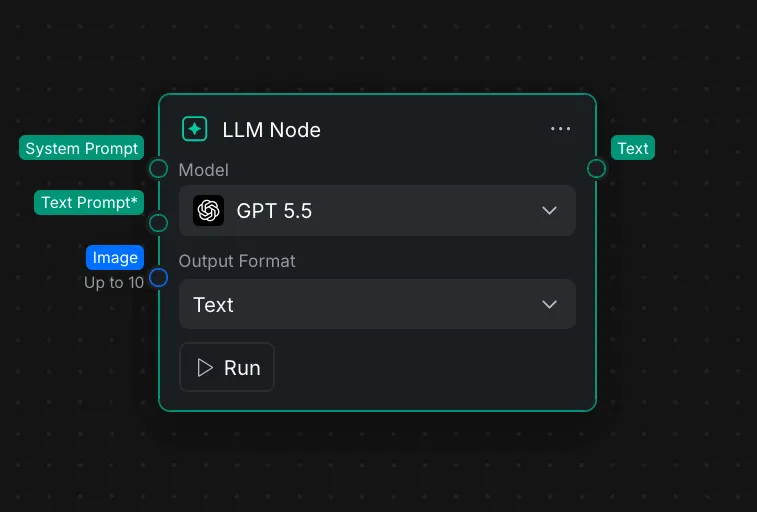
- System Prompt: Optionally connect instructions that define the model's role, behavior, tone, or output rules.
- **Text Prompt\*:** Connect the main request or source text. This input is required.
- Image: Connect up to 10 reference images when the selected model supports image input.
- Model: Select the AI model used to process the request.
- Output Format: Select Text for regular written content or JSON for structured data.
- Output: The generated result is passed through the Text output port.
2.1.1 Supported models
| Provider | Models |
|---|---|
| OpenAI | GPT 5.5, GPT 5.4, GPT 5.4 mini, GPT 5.4 nano, GPT 5.2, GPT 5.1, GPT 5 mini, GPT 5 nano |
| Anthropic | Opus 4.8, Opus 4.7, Opus 4.6, Sonnet 4.6, Haiku 4.5 |
| DeepSeek | DeepSeek V4 Pro, DeepSeek V4 Flash |
2.1.2 Model input limits
| Model | Output formats | Minimum prompt length | Maximum prompt length | Image input |
|---|---|---|---|---|
| GPT 5.5 | Text, JSON | 1 character | 50,000 characters | Up to 10 images |
| GPT 5.4 mini | Text, JSON | 1 character | 50,000 characters | Up to 10 images |
| Opus 4.8 | Not selectable | 1 character | 50,000 characters | Up to 10 images |
| DeepSeek V4 Pro | Text, JSON | 3 characters | 50,000 characters | Not supported |
2.2 Rephrase Text
The Rephrase Text node uses an AI model to rewrite connected text for a specific purpose.
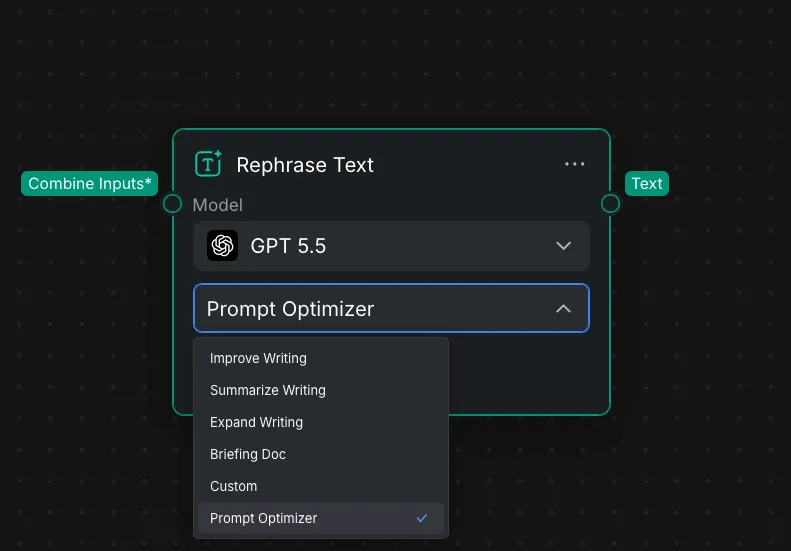
- **Combine Inputs\*:** Connect the text you want to transform. This input is required.
- Model: Select the AI model used to process the text.
- Operation: Choose a rewriting task such as Improve Writing, Summarize Writing, Expand Writing, or Prompt Optimizer.
- Output: The rewritten result is passed through the Text output port.
Use Rephrase Text when you already have content and want to improve or transform it. Use the LLM Node when you need more control through system instructions, multimodal inputs, or a structured JSON output.
3. Text Processing
The Combine Text, Split Text, and Parse JSON nodes restructure text without using an AI model.
3.1 Split Text
The Split Text node divides connected text at a specified separator and outputs one selected part. Use it to generate several prompt versions or scenes in one LLM response, then send each part to a different downstream node.
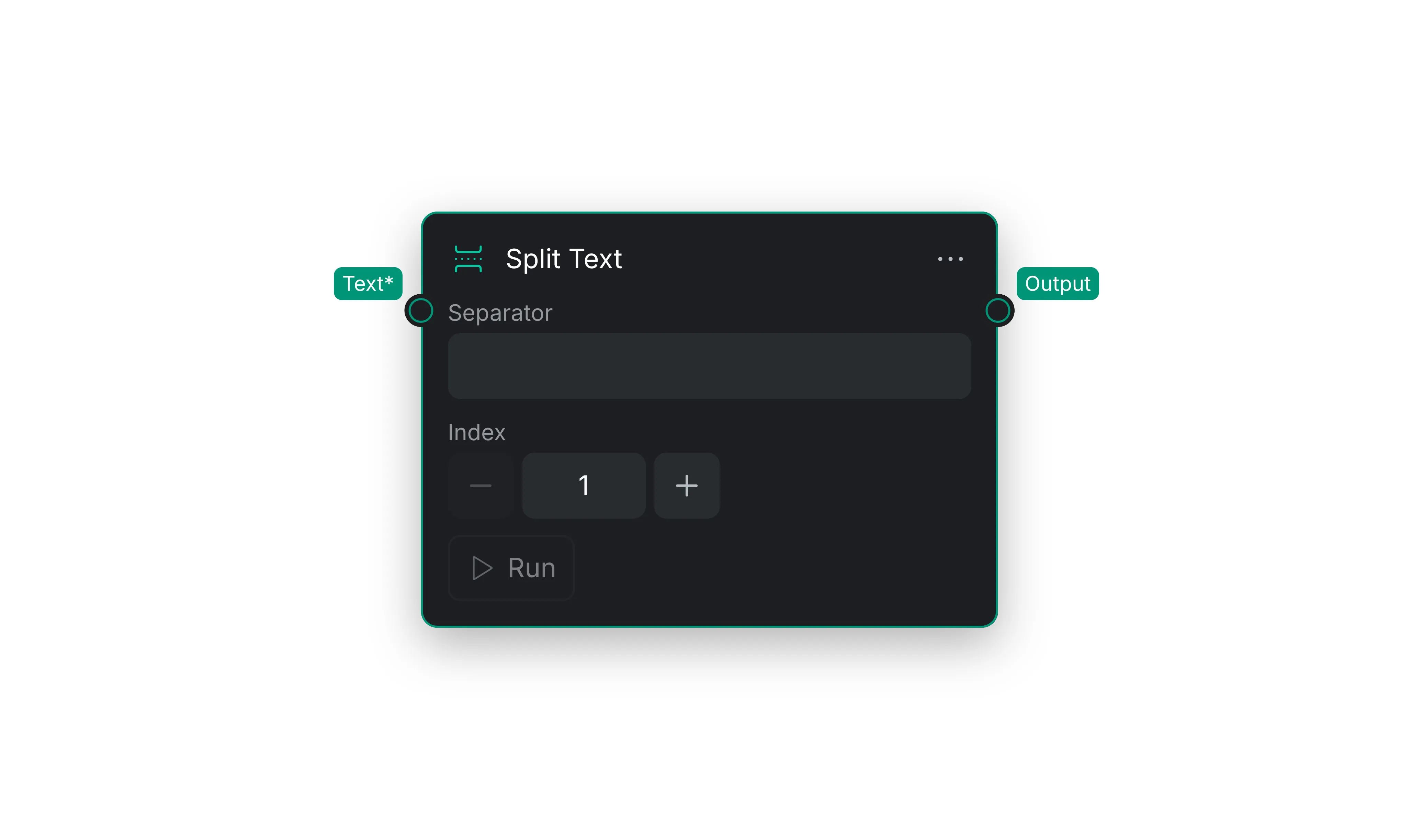
- In a prompt, place the same separator, such as
<<PROMPT>>, between the part you want to split, such as in between different versions or scenes. - Connect the generated result to the Text\* input.
- Enter the exact separator in the Separator field.
- Set the Index for the part you want to output.
1returns the first part,2returns the second part, and so on. - Run the node and the Output will be the speicific part that's extracted from the original prompt.
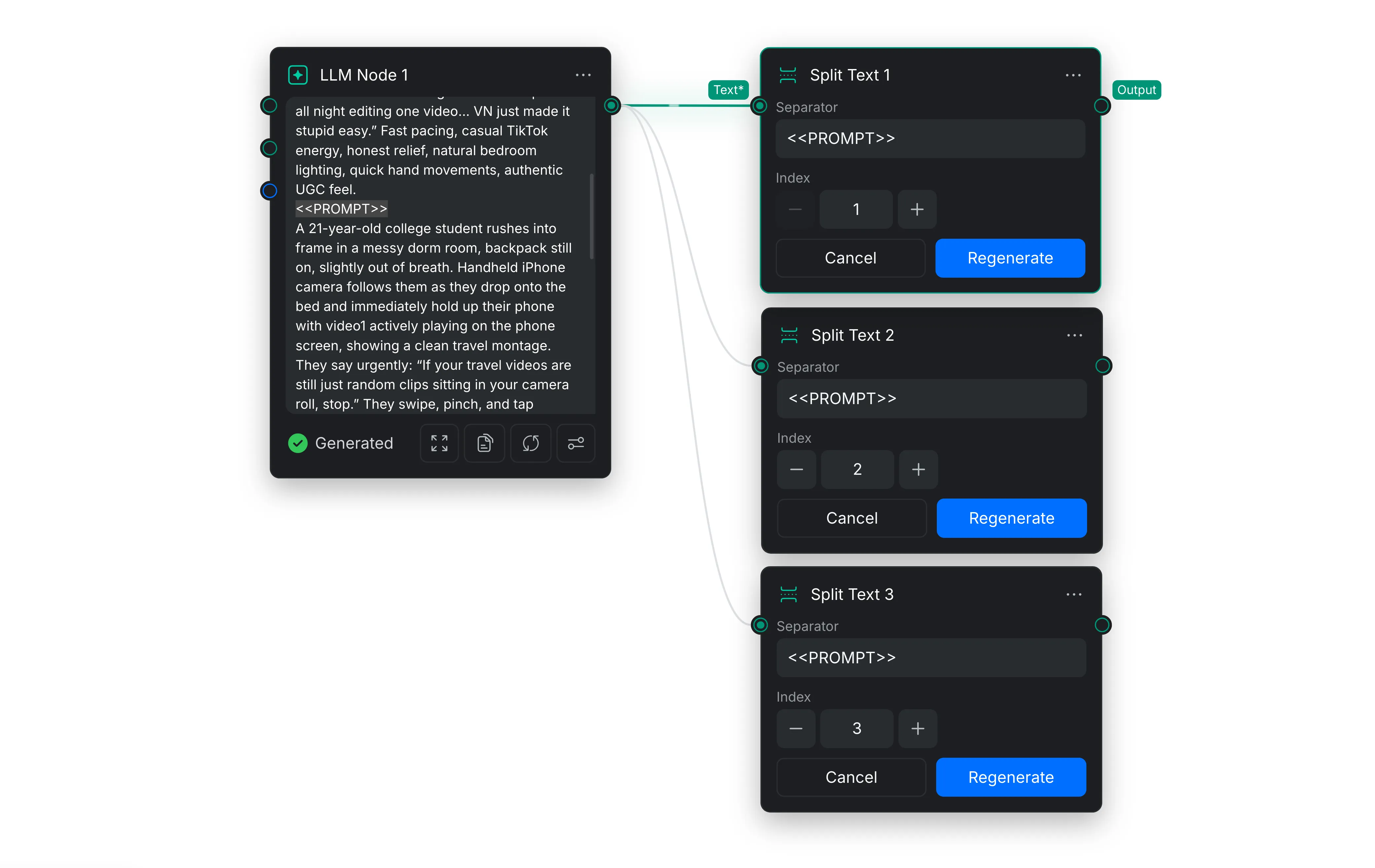
The example above shows how to use the Split Text node. Connect the Split Text node to the prompt you want to split, then assign a different index to each node. Each Split Text node will output only the part of the prompt corresponding to its assigned index.
3.2 Combine Text
The Combine Text node joins multiple connected text inputs into one output. It is useful for assembling prompt components, combining results from different branches, or passing several text values into a node that accepts a single text input.
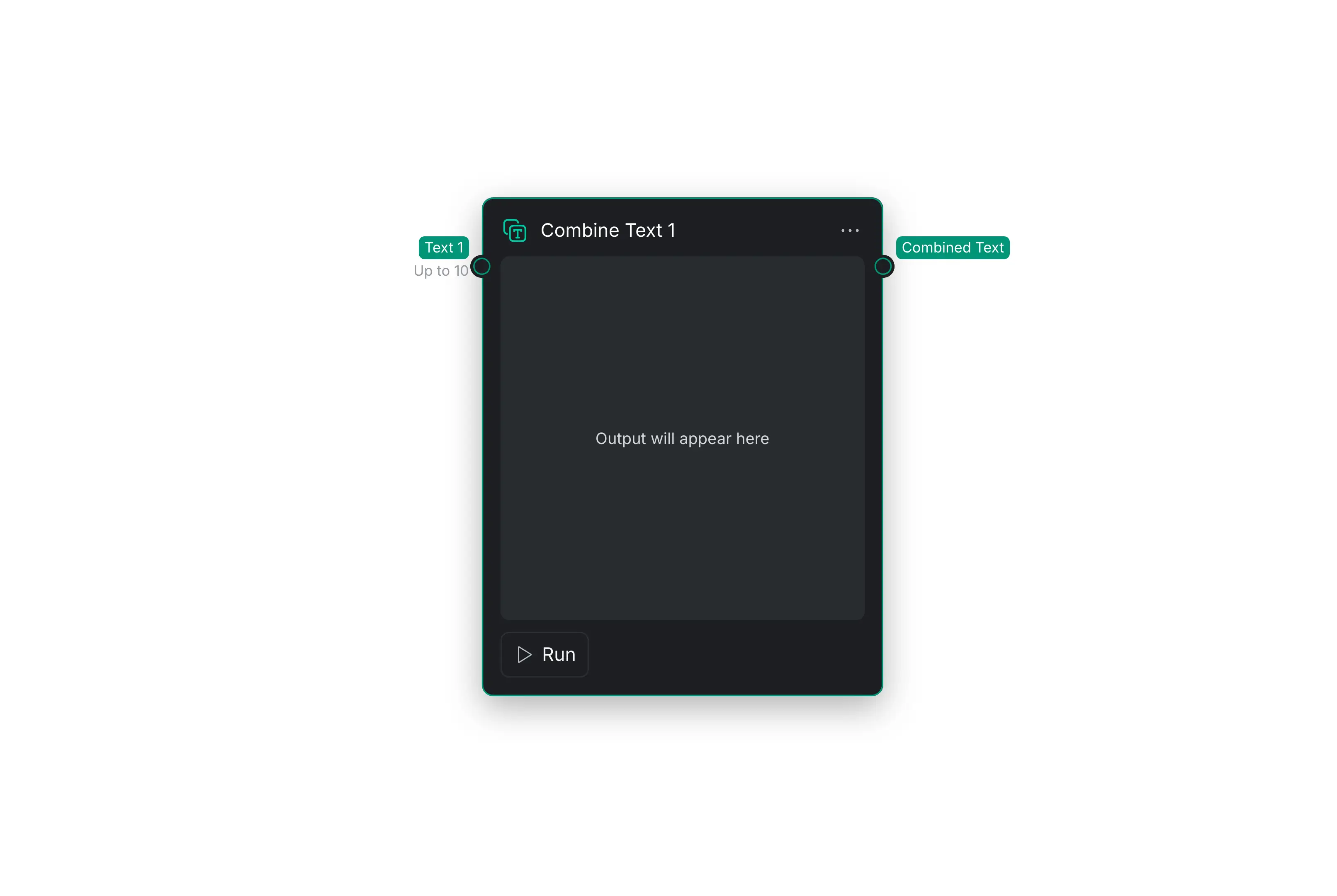
- Connect up to 10 values to the Text input.
- Run the node to join the connected text.
- Connect the Combined Text output to the next node in the workflow.
The node combines the input text as-is and does not rewrite, summarize, or interpret it.
3.3 Parse JSON
The Parse JSON node extracts individual values from structured JSON text. Use it to separate an LLM Node's JSON result or another JSON input into outputs that downstream nodes can use independently.
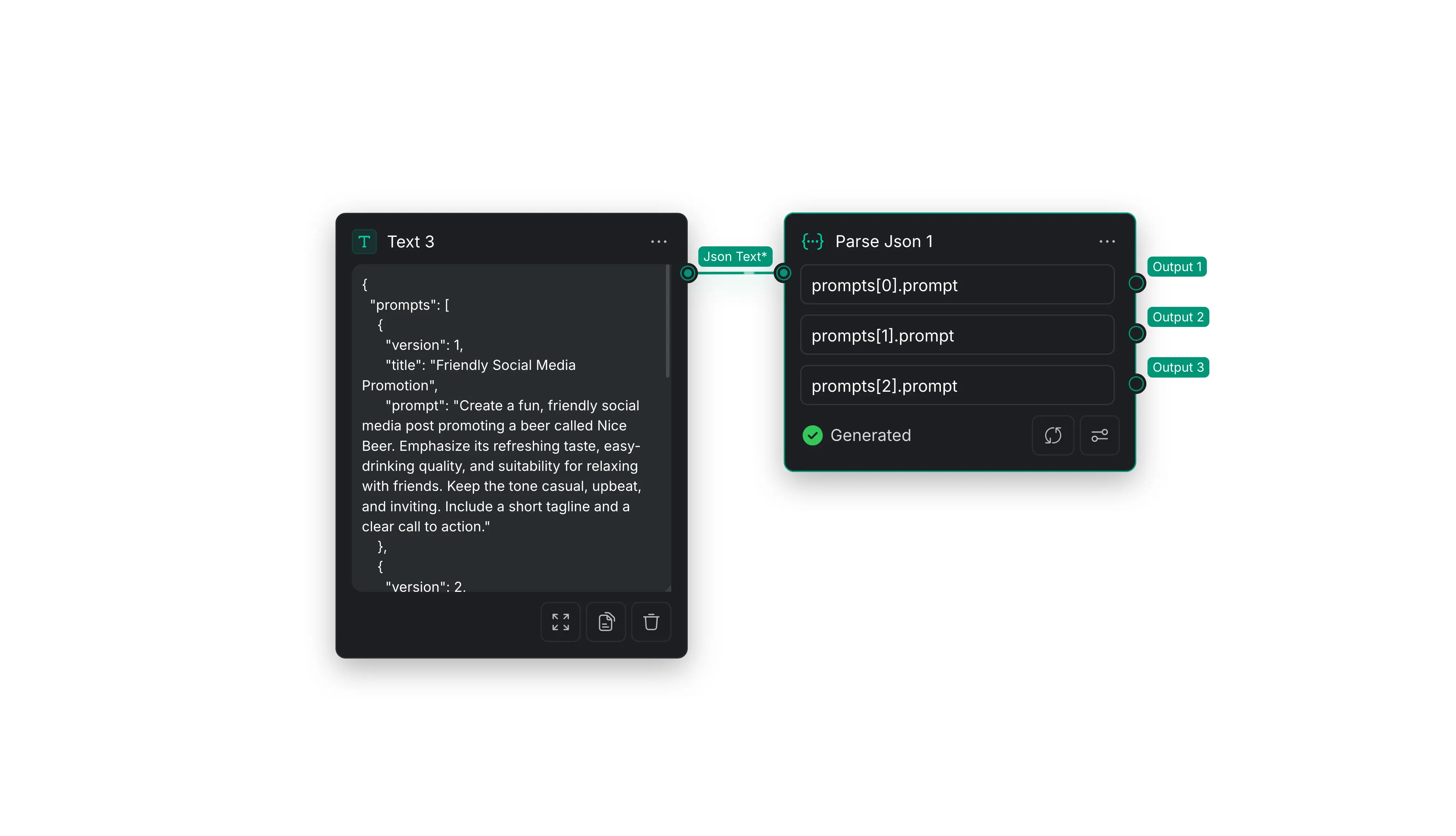
- Connect valid JSON text to the JSON Text\* input.
- Enter the path of each value you want to extract. Array positions begin at
0. - Add or remove output fields as needed, then run the node.
- Connect each generated output to the appropriate downstream node.
For example, paste the following content into a Text node and connect it to the JSON Text\* input:
{
  "prompts": [
    {
      "title": "Product introduction",
      "prompt": "Write a friendly social media post introducing the product."
    },
    {
      "title": "Feature highlight",
      "prompt": "Explain the product's most useful feature in one paragraph."
    },
    {
      "title": "Call to action",
      "prompt": "Write a short call to action inviting viewers to learn more."
    }
  ]
}
Enter these paths in the Parse JSON node:
| Field path | Extracted value |
|---|---|
prompts[0].prompt | Write a friendly social media post introducing the product. |
prompts[1].prompt | Explain the product's most useful feature in one paragraph. |
prompts[2].prompt | Write a short call to action inviting viewers to learn more. |
To extract a different property, change the final key in the path. For example, prompts[0].title returns Product introduction.
4. Note Node
The Note node adds explanatory text directly to the workflow canvas. Use it to describe how a workflow works for other users or to label and mark specific parts of a workflow so the canvas is easier to understand and organize.
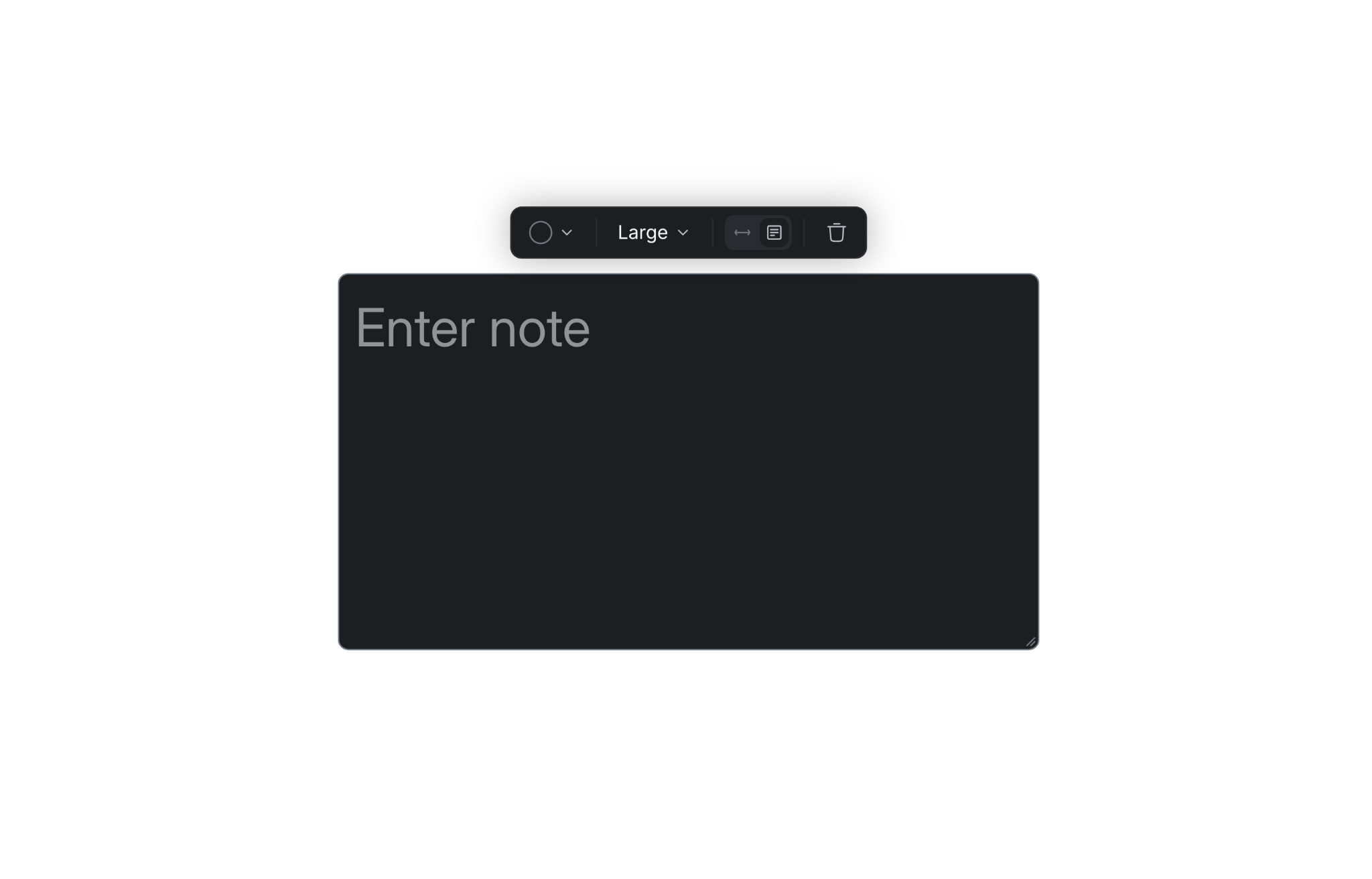
Click inside the text box to enter or edit the note and open its settings. To reposition the note without editing it, drag the text box border.
- Text Color: Select a color to distinguish the note or visually group related parts of the workflow.
- Font Size: Choose Small, Medium, Large, or Extra Large.
- Auto Width: Keeps the text box border close to the text and automatically expands the box as more text is entered.
- Fixed Size: Lets you drag the lower-right corner to customize the text box size. Dragging the lower-right corner while Auto Width is active automatically switches the note to Fixed Size.
- Delete: Select the trash icon to delete the note.