
Overview
The Video Generation node is a powerful multimodal tool that allows you to create brand new video content using various AI models. Depending on the selected mode, it can interpret text prompts, reference images, or even audio tracks to generate the final video output.
Generation Modes
The input ports on the Video Generation node change dynamically based on the mode you select from the tabs located in the Node Panel. Regardless of the mode, the final generated asset is always passed downstream through the "Video" output port.
Text to Video
This mode generates a scene entirely from a descriptive text prompt.
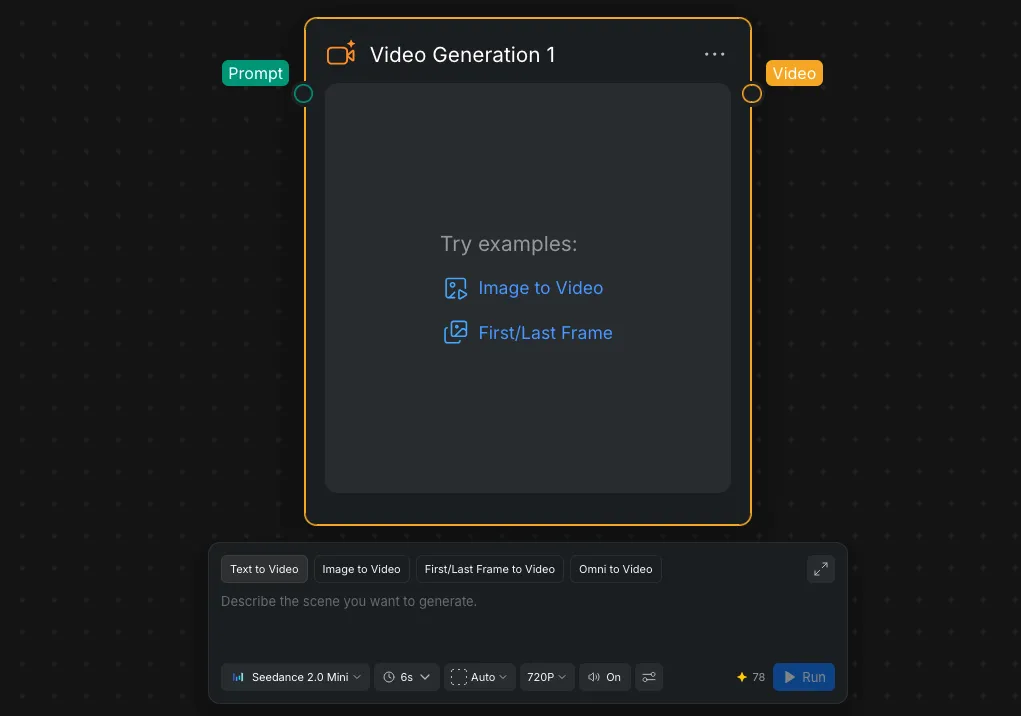
- Inputs: This mode requires only a single "Prompt" input port.
- Prompt Box: You describe the scene you want to generate in the central text area within the Node Panel.
Image to Video
This mode animates static images or uses them as visual references.
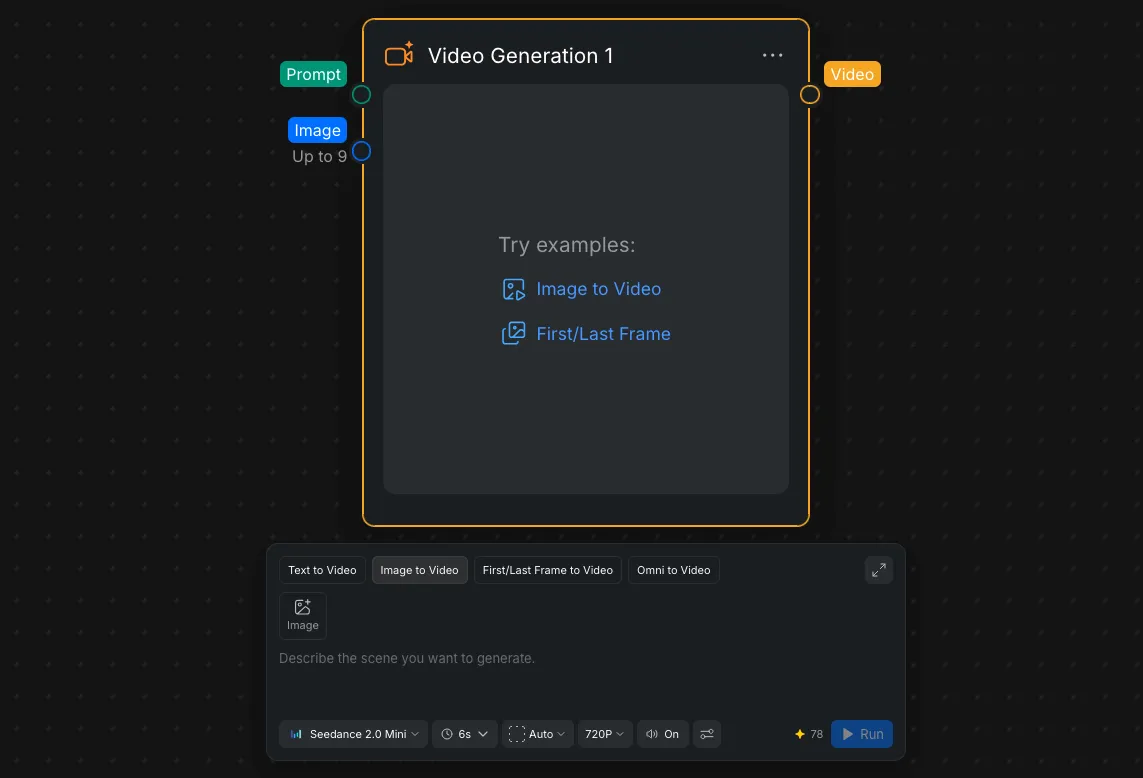
- Inputs: This mode accepts a "Prompt" input and an "Image" input port that supports up to 9 connected images.
- Node Panel: Along with the text description, you can use the "Image" quick-add button within the Node Panel to attach local references directly.
First/Last Frame to Video
This mode generates a video sequence that strictly begins or ends on specific provided frames.
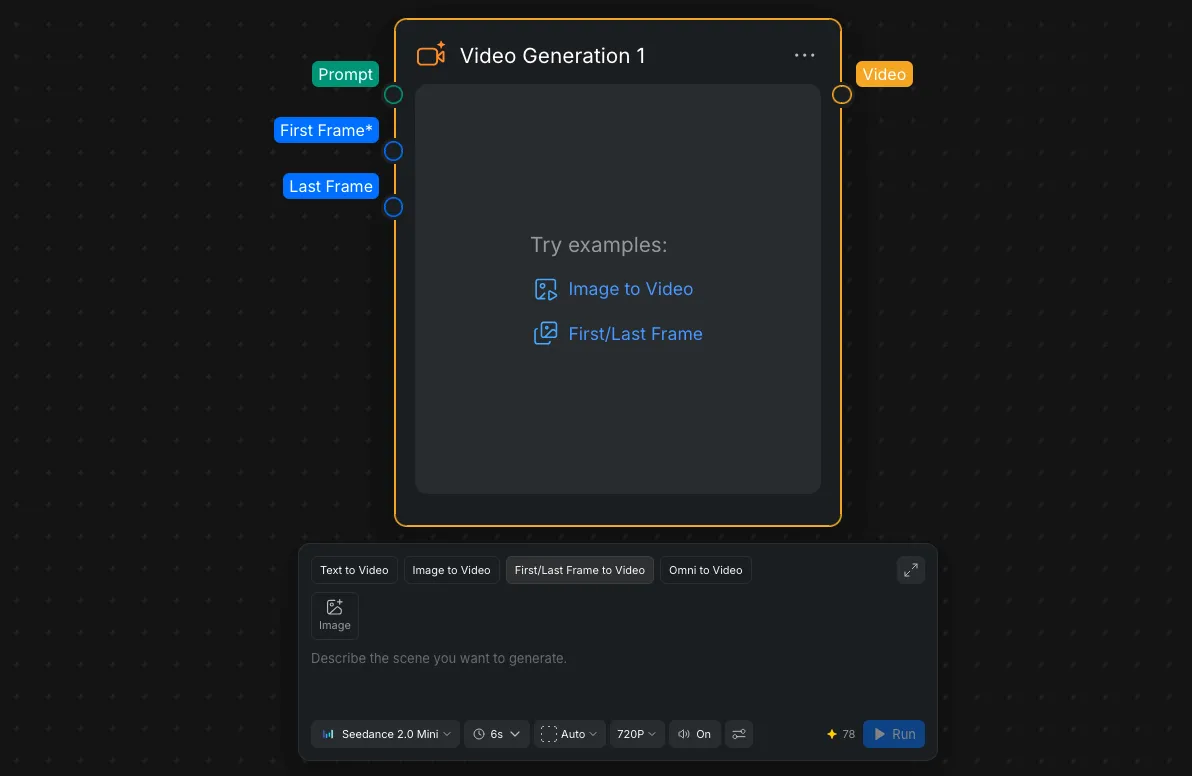
- Inputs: This mode accepts a "Prompt" input, a mandatory "First Frame*" input, and an optional "Last Frame" input.
Omni to Video
This is a comprehensive mode that combines text, image, and audio inputs simultaneously to generate highly complex results.
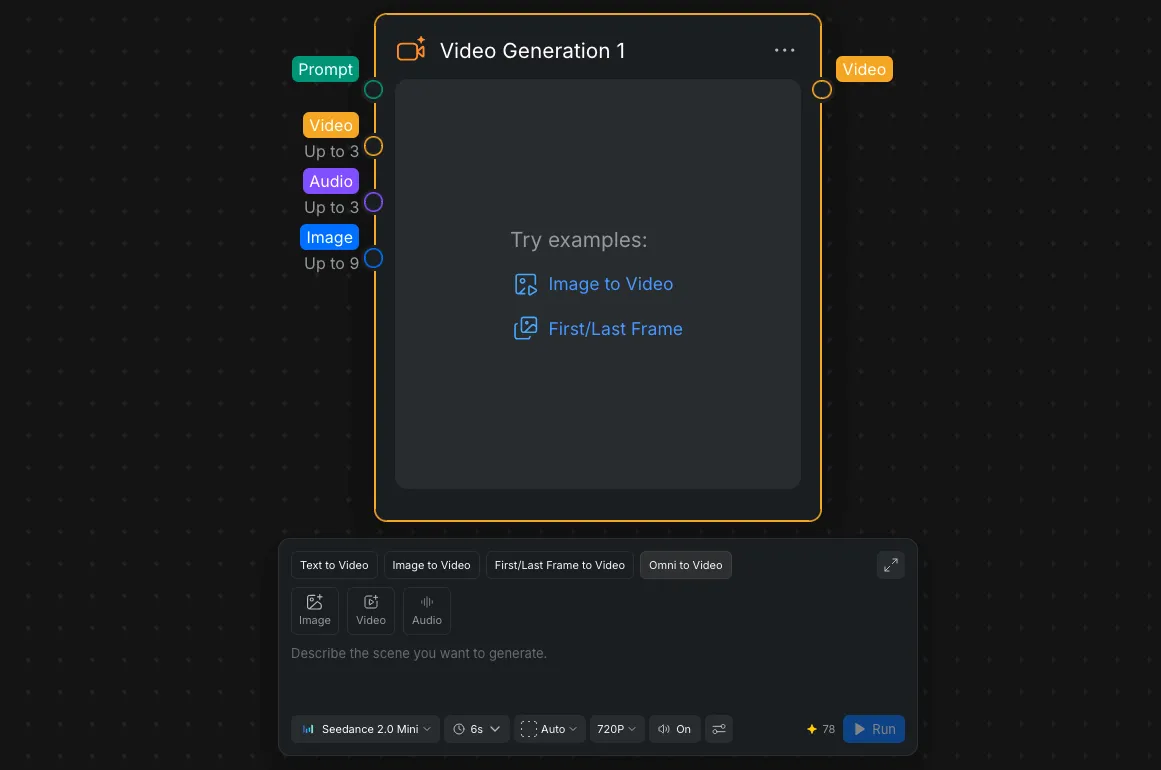
- Inputs: This mode accepts a wide array of inputs, including a "Prompt", up to 3 "Video" inputs, up to 3 "Audio" inputs, and up to 9 "Image" inputs.
- Node Panel: You can utilize the "Image," "Video," and "Audio" quick-add buttons directly within the Node Panel to build a multimodal request.
Node Settings
No matter which generation mode you are using, the Node Settings area at the bottom of the Node Panel provides universal controls for your video output:
- Model Selection: Choose the specific AI video model, such as "Seedance 2.0 Mini".
- Duration: Set the length of the generated video (e.g., "6s").
- Aspect Ratio & Resolution: Define the framing dimensions (e.g., "Auto") and the visual fidelity (e.g., "720P").
- Audio: Toggle the generation of accompanying audio "On" or off.
- Execution: Once all inputs and settings are configured, click the "Run" button located in the Node Settings to initiate the generation process.